Demo Content
The Demo Content feature of 7S Video & Music Gallery lets you explore the gallery using ready-made examples before adding your own video and music. You can try the gallery archive, category menu, showcase layouts and players from the first installation.
1. Demo content on first installation
After installing and activating the plugin, open View Gallery under 7S Gallery → Settings. If demo entries were created automatically during installation, you can explore the example videos and music immediately; no additional demo installation is necessary.
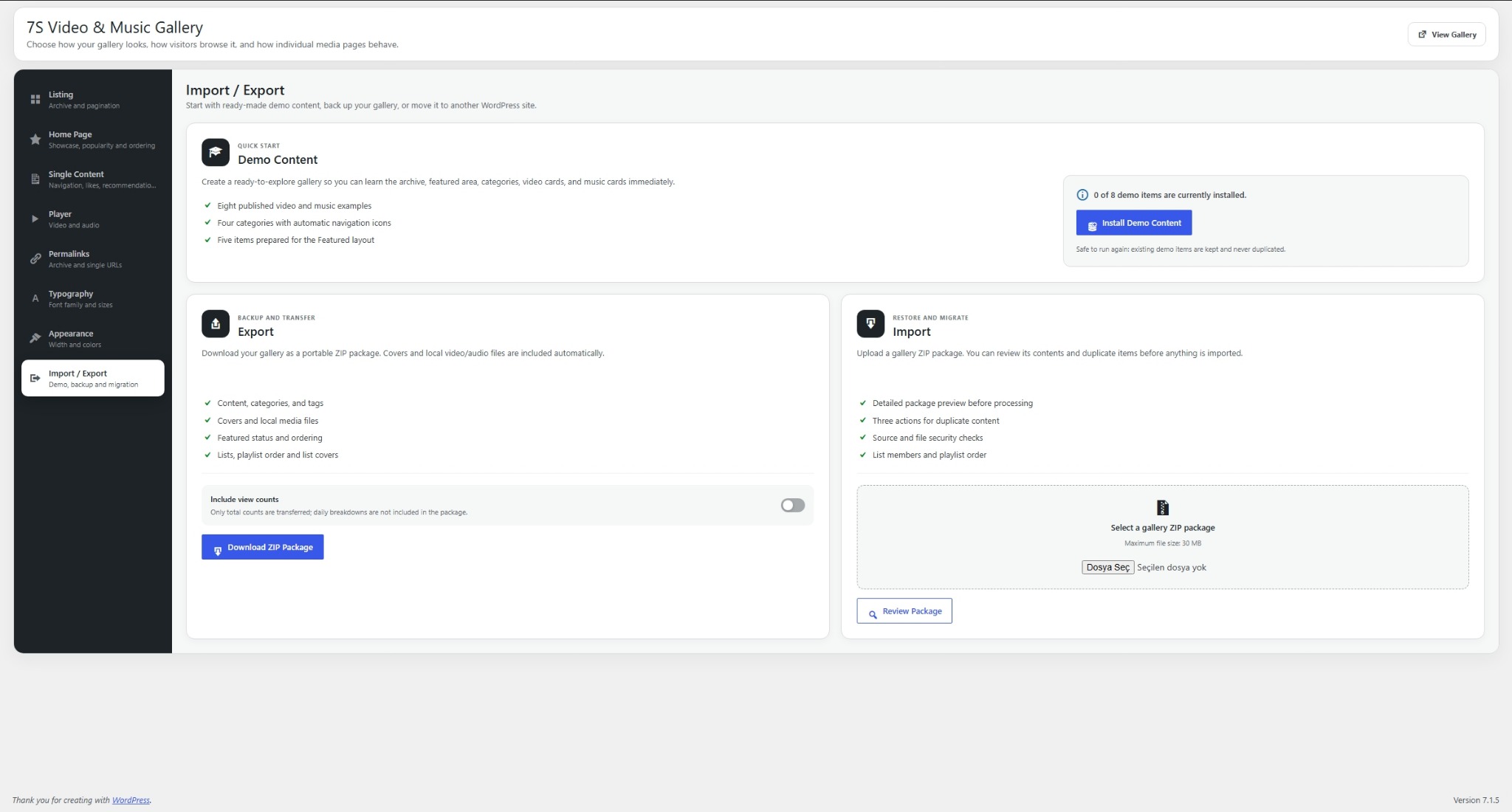
If the gallery is empty or some examples are missing, install or restore them in the Demo Content section of 7S Gallery → Settings → Import / Export.
 Enlarge ⤢
2. What does the demo include?
The complete sample set contains eight published media entries, four categories and five featured items prepared for the showcase. Example titles, descriptions, source links, categories and tags are ready to use.
| Example content | Type | Category | Showcase |
|---|---|---|---|
| Sintel — Short Film Trailer | Video (MP4) | Short Films | Featured |
| Big Buck Bunny — Trailer | Video (MP4) | Trailers | Featured |
| Open Movie — Preview | Video (MP4) | Trailers | Featured |
| Open Movie — WebM Cut | Video (WebM) | Short Films | Featured |
| SoundHelix — Demo Track 1 | Audio / Music (MP3) | Film Music | Featured |
| SoundHelix — Demo Track 2 | Audio / Music (MP3) | Film Music | — |
| SoundHelix — Live Session 3 | Audio / Music (MP3) | Live Sessions | — |
| SoundHelix — Live Session 4 | Audio / Music (MP3) | Live Sessions | — |
The table uses English example titles. Titles and category names may appear in another language depending on your WordPress language and translations available at installation. Videos and music use direct external file links; the complete source files are not downloaded to your site. The plugin’s cover generation system provides cover images. The demo set does not create ready-made Lists; you can create your own from the sample media.
3. Checking the demo content status
The Demo Content card shows how many of the eight examples exist. This counter refers to the plugin’s own demo entries, not all video and music entries in your gallery. Draft or private demo entries may also be counted. Trashed demo entries are excluded.
| Status | Panel button | Function |
|---|---|---|
| 0 / 8 | Install Demo Content | Creates the sample set or restores trashed examples. |
| 1–7 / 8 | Restore Missing Demo Content | Restores missing examples without recreating existing demo entries. |
| 8 / 8 | Check Demo Content | Checks existing examples without duplicating them. |
If you see 8 / 8 and the examples are available, no installation is needed. This count does not guarantee that all examples are public; check their publication status separately.
4. Installing or restoring missing demo content
- Go to 7S Gallery → Settings → Import / Export.
- Check the current sample count in the Demo Content card.
- Click Install Demo Content or Restore Missing Demo Content, as appropriate.
- Review the notice showing the numbers of added, restored and preserved entries.
- Use View Gallery to check how the examples appear to visitors.
When the tool runs again, existing demo content is recognized by its own record identifiers. Titles and descriptions are not overwritten and examples are not duplicated. Trashed examples can be restored and permanently deleted examples can be recreated. Missing demo categories are also created. The five showcase examples may be marked as featured again and added to the showcase order.
If you deliberately removed demo examples or excluded them from the showcase, bear this behavior in mind before running the tool again. It does not reset your gallery or delete your own media entries in bulk.
5. What can you try with demo content?
- Gallery archive: Switch between All, Video and Music.
- Categories: Explore the four example categories, automatic menu icons and category filters.
- Showcase: Try different layouts with the five featured examples. If the showcase is disabled, enable it in Home Page settings.
- Single content: Open a video and a music page to explore the player, descriptions, sharing tools and related content.
- Search and pagination: Search for example titles; change the item count and ordering in Listing settings.
- Lists: Use Gallery Content to create a video or music list from the examples.
- Appearance and Typography: Evaluate width, colors and font sizes using the example content.
See Listing, Showcase Settings, Creating Lists, Appearance and Typography.
6. Switching to your own content and removing examples
Once your gallery is ready, you do not have to retain the examples. Create your own media entries and edit, unpublish as drafts or move individual demo entries to the trash in 7S Gallery → All Content.
If you no longer need the example categories, check 7S Gallery → Categories. Before deleting them, check whether your own entries are assigned to those categories. You can reuse demo category names and icons for your gallery.
The Demo Content card does not have a separate button to delete every example at once. Select only the records you want to remove; avoid deleting your own entries accidentally. There is no need to uninstall the plugin to remove examples. Unless you run the demo installer again, you do not need to restore deleted examples manually.
7. Troubleshooting
| Issue | Explanation or solution |
|---|---|
| Gallery is empty after first installation. | Check the Demo Content counter. If examples are missing, click Install Demo Content. |
| Some examples are missing. | Use Restore Missing Demo Content. |
| 8 / 8 is shown, but some examples are absent from the gallery. | Check publication statuses, category filters and archive pagination. |
| Examples do not appear in the showcase. | Enable the showcase in Home Page settings and check featured item order. |
| An example video or music item does not play. | Examples use external media URLs. Check source accessibility and browser support. |
| Deleted examples have returned. | Missing examples can be recreated when the installer or restore tool runs again. |
See Getting Started, Adding Video and Music and Import / Export.