Adding Video and Music
7S Video & Music Gallery lets you publish content from YouTube, Vimeo and supported music platforms, use your own video and audio files, or add direct media file URLs. Video and music share the same editing screen; the required fields and player depend on the source you choose.
Contents
- Create a new media item
- Add a video
- Add music
- Add content from the Media Library (Self-hosted Media)
- Add a direct media URL
- Player preview and source validation
- Covers, categories and tags
- Publish and edit content
- Troubleshooting
1. Create a new media item
In your WordPress dashboard, go to 7S Gallery → Add New. Alternatively, use + New → Media Item in the admin bar.
Enter the video or music title in the WordPress title field and the description visitors should see in the editor. Then open the Media Source box. This determines where the content comes from and which player is used.
| Field | Purpose |
|---|---|
| Content type | Choose Video or Audio / Music. |
| Source | A compatible platform, WordPress file or external file URL. |
| Source link | Sharing URL for an external platform or direct media file URL. |
| Media file | Audio or video file selected from the WordPress Media Library. |
| Player Preview | Preview the source before saving the content. |
The Source link and Media file fields are used according to the selected source; you do not need to fill in both.
2. Add a video
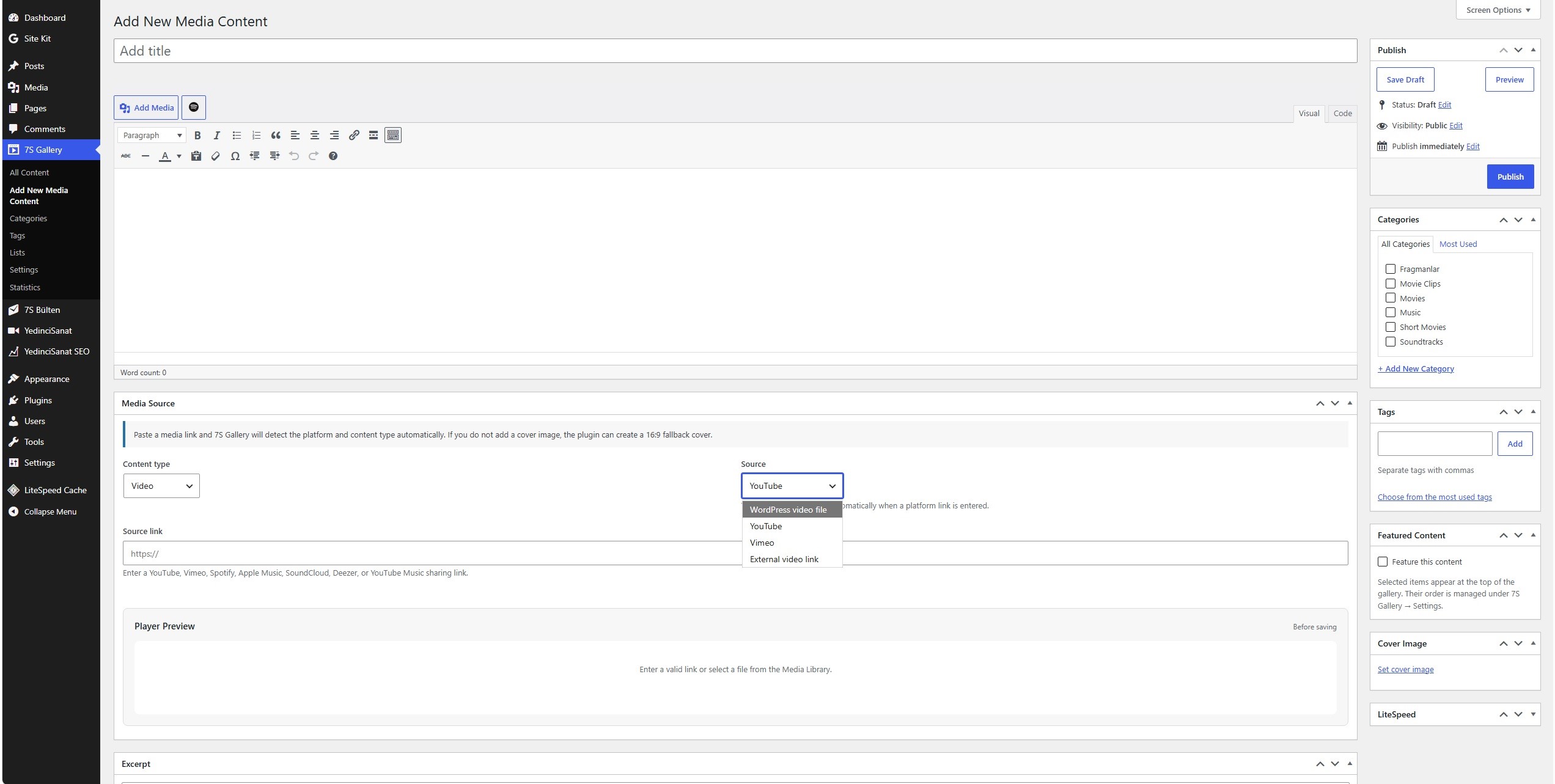
When you select Video as the content type, four source options are available. The screenshot below shows the video source selector in the administration screen.
 Enlarge ⤢
| Source | Use |
|---|---|
| WordPress video file | A video file from the Media Library. |
| YouTube | A YouTube video or supported playlist URL. |
| Vimeo | A Vimeo video URL. |
| External video link | A directly accessible video file URL. |
Add a YouTube or Vimeo video
- Copy the sharing link of the video you want to add.
- Paste it into the Source link field in Media Source.
- When the plugin recognizes a supported URL, it automatically updates the content type and source selection. Check that the correct source is selected.
- Open the video in Player Preview and check playback.
- Complete the title, description, cover and categories, then publish.
Example URL formats: https://www.youtube.com/watch?v=VIDEO_ID, https://youtu.be/VIDEO_ID and https://vimeo.com/VIDEO_ID. Replace VIDEO_ID with your own video ID. Use the sharing URL rather than HTML iframe code. The source video must allow playback on external websites.
3. Add music
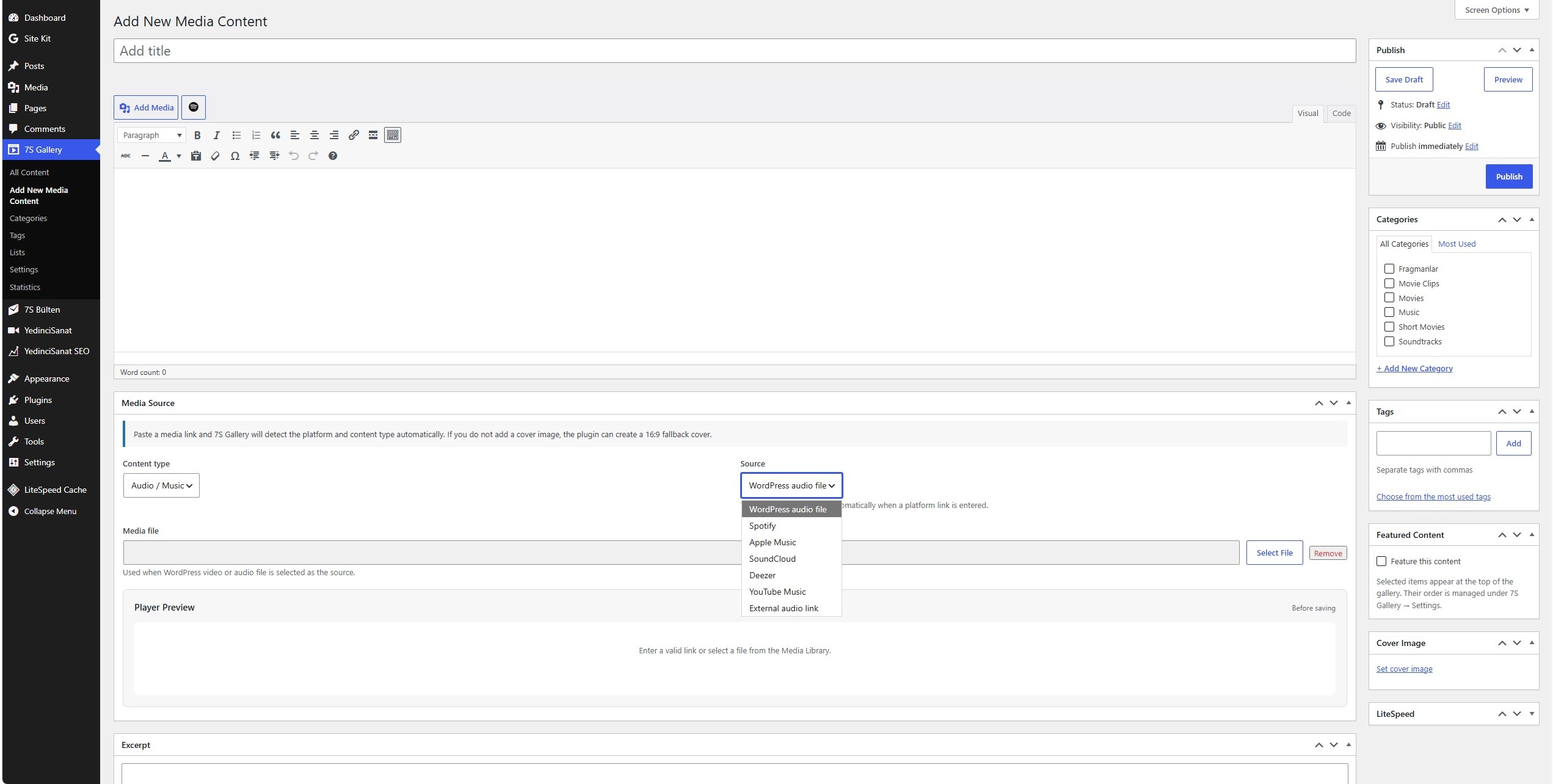
Selecting Audio / Music as the content type displays the music sources. Video and music are separate media types but use the same editor.
 Enlarge ⤢
| Source | Use |
|---|---|
| WordPress audio file | An audio file selected from the Media Library. |
| Spotify | Tracks, albums and other supported Spotify content. |
| Apple Music | Apple Music content URLs. |
| SoundCloud | Tracks and supported playlist URLs. |
| Deezer | Tracks, albums and other supported Deezer content. |
| YouTube Music | YouTube Music video or playlist URL. |
| External audio link | A directly accessible audio file URL. |
Add content from an external music platform
- Copy the sharing URL of a track, album or other supported item from the platform.
- Paste it into Source link. For recognized URLs, Audio / Music and the provider are detected automatically.
- Check the embedded music player in the preview.
- Complete the title, description, cover and classification details.
- Publish the item.
For example, use https://open.spotify.com/track/TRACK_ID for Spotify or https://music.youtube.com/watch?v=VIDEO_ID for YouTube Music. The uppercase IDs are placeholders. A provider’s player may offer only a preview for certain items; full playback depends on its policies.
See Supported Media Sources for all supported URL types and Player for examples of visitor-facing players.
4. Add content from the Media Library (Self-hosted Media)
You do not have to upload your video or music to an external platform. Use media files hosted on your WordPress website directly as gallery items.
- Create a new media item and select the appropriate content type.
- Select WordPress video file for video or WordPress audio file for music.
- Click Select File in the Media file field.
- Choose an appropriate file from the Media Library or upload a new one.
- Check the audio or video in Player Preview. If you selected the wrong file, click Remove and select another one.
- Complete the title, description and cover details and publish.
The file’s media type must match the selected content type. MP4 for video and MP3 for audio are widely compatible formats. File size, server upload limits and browser codec support can affect playback. Local files use your hosting account’s storage and bandwidth.
5. Add a direct media URL
You can add a directly accessible media file hosted on another server without uploading it to WordPress again. Select External video link for video or External audio link for music. Paste the file URL into Source link and check Player Preview.
| Content type | Example URL |
|---|---|
| Video | https://example.com/media/video.mp4 |
| Audio / Music | https://example.com/media/music.mp3 |
These addresses are format examples. Use the actual file URL; a web page, download screen or link requiring sign-in is not a direct media file URL. Recognition of the file extension alone does not guarantee playback.
6. Player preview and source validation
Use Player Preview before saving the content. YouTube, Vimeo and external music platforms display the relevant provider’s embedded player; file sources display the built-in audio or video player.
The plugin checks whether the link belongs to a supported source, matches the selected media type and contains the necessary identifiers. For WordPress files, it checks whether a file has been selected and validates its type. This does not guarantee that the source can be played by every visitor.
If the source is invalid, a Media source warning may appear after saving. This does not automatically prevent publishing; correct the issue and save the item again. If a media record already exists with the same URL or local file, a Duplicate media source warning and a link to the existing record may appear. This does not automatically delete the record or block publishing.
7. Covers, categories and tags
After choosing a media source, complete the gallery record using the featured image, category and tag fields in the editor.
- Cover image: Choose your own image. Covers may be fetched automatically from supported sources; if no suitable cover is available, the plugin may attempt to generate a default 16:9 cover.
- Refresh cover from source: For saved content, attempts to retrieve the source image again. Use this when you want to replace a previously selected cover. If the download fails, the existing cover is preserved.
- Categories: Make the content available under the corresponding gallery categories.
- Tags: Describe the content using keywords such as subject or artist.
- Feature this content: Makes the item eligible for the homepage showcase. Showcase settings must also be enabled.
See Categories, Tags and Covers and Showcase Settings.
8. Publish and edit content
- Review the title and description.
- Verify the content type and source.
- Test playback in Player Preview.
- Review the cover, categories and tags.
- Click Publish in the WordPress editor.
- Check the published single media page and its card in the gallery archive. Test on a mobile device if possible.
To edit an existing media record, open it from the 7S Gallery menu. Change its source URL, title, description or cover and click Update. You do not need to create a new media record to add existing content to a list; the Adding Items to Lists guide explains the Gallery Content method.
9. Troubleshooting
| Situation | Solution |
|---|---|
| Platform is not detected automatically. | Use the full sharing URL of a supported platform. Try the actual content URL rather than a redirecting short link. |
| Player is empty or video is unavailable. | Check the URL, content ID and provider’s embedding permissions. |
| Music plays only as a preview. | This may result from the external platform’s access and subscription conditions. |
| WordPress file cannot be selected or played. | Check whether the file matches the selected type, upload limits and browser support. |
| Media source warning appears. | Correct the error described in the warning and save the item again. |
| Duplicate media source warning appears. | Follow the link to review the existing item. Avoid unnecessary duplicates. |
| Cover image is missing. | Select your own cover or use Refresh cover from source for supported sources. |
Related guides: Supported Media Sources · Player · Single Content · Creating Lists.