Home Page → Hero Area
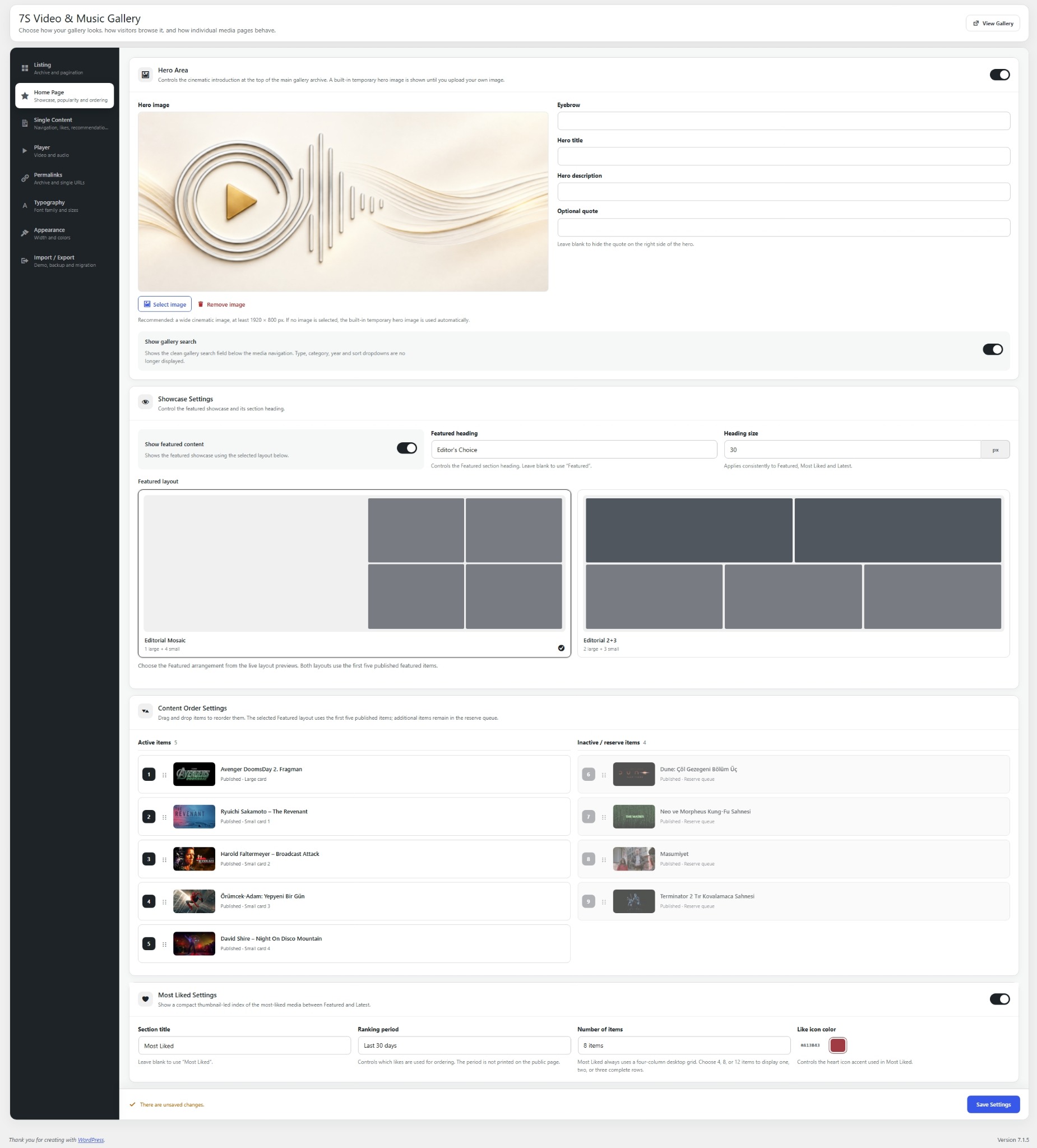
The Hero Area in 7S Video & Music Gallery lets you manage the large introductory image and text at the top of the gallery homepage. Choose a background image that suits your gallery identity and customize the headings, description and optional quote.
Open 7S Gallery → Settings → Home Page → Hero Area in the WordPress dashboard.
 Enlarge ⤢
Contents
- Enable the Hero Area
- Hero image
- Title, description and quote
- Gallery homepage appearance
- Show gallery search
- Hero text colors
- Typography and mobile layout
- Save settings
- Troubleshooting
1. Enable the Hero Area
Use the switch in the Hero Area settings card to turn the section on or off. It is enabled by default. When enabled, it appears at the top of the first gallery archive page before the gallery menu. It does not appear in category archives, single media pages or subsequent numbered archive pages.
Disabling the Hero Area hides only the introductory image and its text. Gallery items, navigation and other independent homepage sections are not deleted. Hero and search visibility are separate settings.
2. Hero image
Select an image from the WordPress Media Library or upload a new one. The recommended minimum size is 1920 × 800 px. A wide, cinematic image is recommended.
When no image is selected or the selected image cannot be used, the plugin displays its built-in placeholder Hero image. Removing the selected image alone does not hide the Hero Area; disable its switch to hide the entire section.
Choose an image with sufficient contrast and a simple background where the text will appear. The recommended dimensions are for image quality and wide-screen compatibility, not a mandatory upload size.
3. Title, description and quote
| Field | Purpose | Character limit |
|---|---|---|
| Eyebrow | Small introductory text above the main title. | 100 |
| Hero title | Large main gallery title. | 100 |
| Hero description | Short description below the main title. | 220 |
| Optional quote | Separate Hero quote, shown on the right on desktop. | 220 |
The four fields are independent. Leaving a field blank hides its text on the visitor-facing page. No automatic replacement title is added when Hero title is empty. Leave all four fields empty for an image-only Hero.
Fields are saved as plain text. Change font, size and color using Typography and Appearance rather than inserting HTML into the text.
4. Gallery homepage appearance
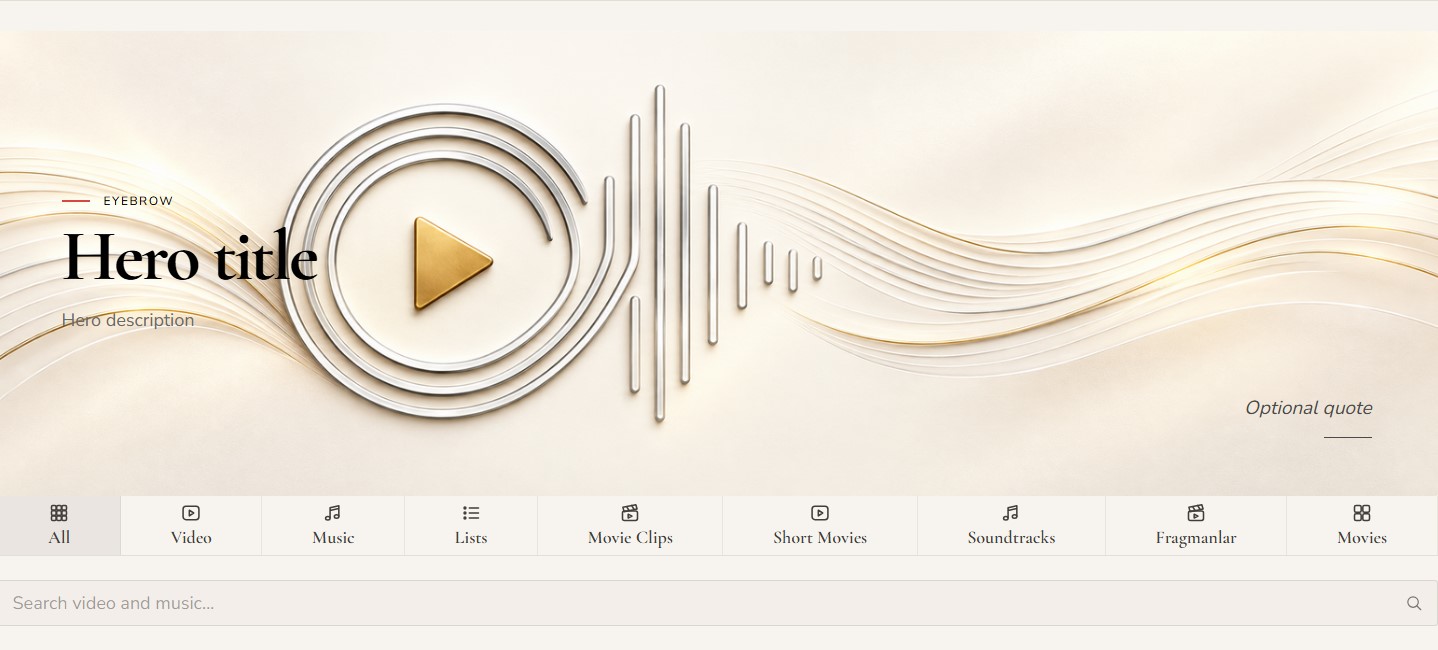
The screenshot below shows the visitor-facing homepage when Hero Area settings are filled in. The eyebrow, main title and description appear over the image; an optional quote is displayed separately when provided. Navigation and gallery search may appear below the Hero according to their own visibility settings.
 Enlarge ⤢
5. Show gallery search
This option enables or disables the search field below gallery navigation. It is enabled by default. Search may remain enabled even when the Hero Area is disabled. The type, category, year and sorting dropdown filters are not displayed in the search field in this release.
Use Listing to manage menu visibility and order.
6. Hero text colors
Hero text colors are managed in 7S Gallery → Settings → Appearance → Interface colors, not the Home Page tab.
| Color setting | Affected area |
|---|---|
| Hero eyebrow color | Small eyebrow heading. |
| Hero title color | Main heading. |
| Hero description color | Description. |
| Optional quote color | Quote text. |
All four colors default to white (#FFFFFF). Choose colors according to image brightness and the area behind the text. Each setting affects its own Hero text; other gallery headings have separate controls. See Appearance.
7. Typography and mobile layout
In 7S Gallery → Settings → Typography, choose a font family, weight, desktop size and mobile size independently for the eyebrow, title, description and quote.
| Text area | Default desktop | Default mobile |
|---|---|---|
| Eyebrow | 12 px | 11 px |
| Hero title | 72 px | 48 px |
| Description | 18 px | 15 px |
| Quote | 19 px | 15 px |
On mobile, the image adapts to its own aspect ratio without cropping. Text uses mobile size settings. Check the readability of long titles and descriptions on narrow screens; shorten the text or reduce mobile font size when needed. A saved mobile size cannot exceed the corresponding desktop size.
See Typography for more information.
8. Save settings
- Enable Hero Area.
- Select the background image and fill in the desired text fields.
- Set gallery search visibility.
- If needed, adjust colors and text properties in Appearance and Typography.
- Click Save Settings.
- Open View Gallery and check desktop and mobile appearance.
9. Troubleshooting
| Situation | Explanation or solution |
|---|---|
| Hero Area is missing. | Check that it is enabled and that you are on the first gallery archive page. |
| Default image appears instead of the selected image. | Verify the Media Library image, select it again and save. |
| Title or quote is missing. | Fill in its text field; empty fields are hidden automatically. |
| Text is unreadable over the image. | Change its color in Appearance or select a more suitable background. |
| Title is too large on mobile. | Reduce the relevant mobile size in Typography. |
| Search field is missing. | Enable Show gallery search. |
Related guides: Listing · Showcase Settings · Typography · Appearance.