Typography
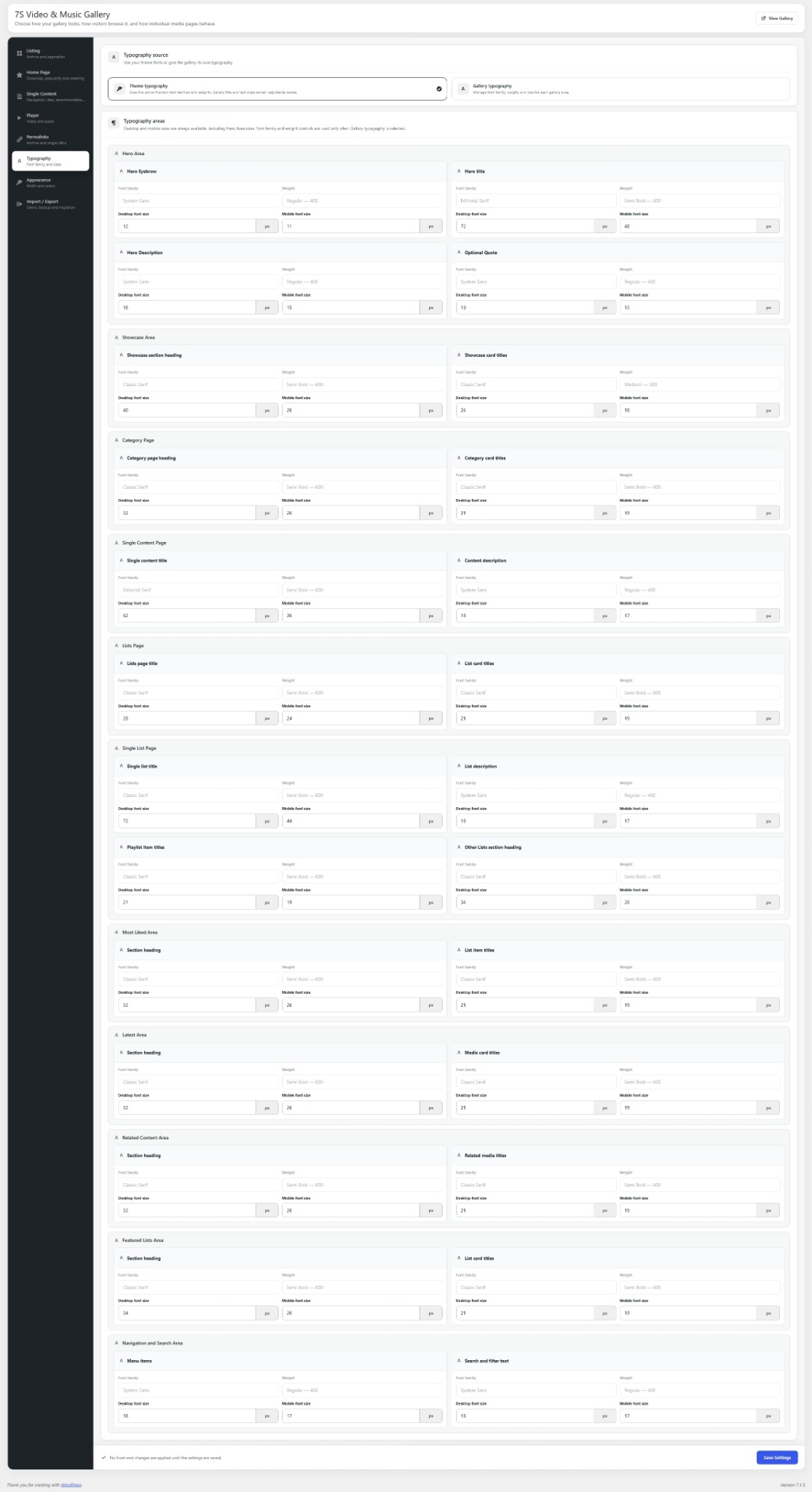
Typography settings let you keep 7S Video & Music Gallery consistent with your active WordPress theme or give the gallery its own visual identity. Manage 26 individual text areas in 11 sections, from the homepage and single media pages to playlists and menus. Desktop and mobile font sizes can be configured separately.
Open 7S Gallery → Settings → Typography in the WordPress dashboard.
 Enlarge ⤢
Contents
- Typography source
- Font family, weight and size
- Typography areas
- Example typography configuration
- Save and check settings
- Troubleshooting
1. Typography source
Two typography modes are available at the top of the settings screen. The selection determines where the gallery obtains its font families and weights.
Theme typography
Uses the active WordPress theme’s font families and weights so the gallery integrates with the site’s existing design. Desktop and mobile font sizes remain adjustable for each area. Disabled Font family and Weight fields are expected in this mode.
Gallery typography
Choose a font family and weight independently for each area. For example, use a serif font for the Hero title and sans-serif for descriptions and menus. Desktop and mobile size controls remain available. These settings do not change site-wide theme typography.
| Control | Theme typography | Gallery typography |
|---|---|---|
| Font family | Inherited from theme | Selectable per area |
| Weight | Inherited from theme | Selectable per area |
| Desktop font size | Adjustable | Adjustable |
| Mobile font size | Adjustable | Adjustable |
Theme typography is sufficient if you want to retain site fonts and only resize gallery headings. Use Gallery typography when you also want to change font family or weight.
2. Font family, weight and size
Font family
When Gallery typography is enabled, choose from these families for each text area:
- Theme font: Inherits the font for the corresponding area from the theme.
- System Sans: Clean, sans-serif system fonts, suitable for navigation and descriptions.
- Editorial Serif: Georgia-based serif family, suitable for large editorial headings.
- Classic Serif: Times New Roman-based serif family, suitable for classic heading and card designs.
Weight
Gallery typography provides Regular (400), Medium (500), Semi Bold (600) and Bold (700). Appearance depends on the weights supported by the selected font.
Desktop font size and Mobile font size
Set separate pixel values for each text area. Version 2.5 accepts sizes from 9 to 120 px. For example, a 64 px desktop Hero title can be set to 36 px on mobile. Changing mobile size does not change desktop size. These independent controls are available in both typography modes, including the Hero Area.
3. Typography areas
The following 11 sections follow the order of the settings panel. Each row is a separate text control with desktop and mobile sizes. In Gallery typography mode, font family and weight are also managed independently.
1. Hero Area
Controls the introductory section at the top of the gallery homepage. The eyebrow, title, description and quote are independent.
| Panel field | Affected text |
|---|---|
| Hero Eyebrow | Short text above the main title. |
| Hero title | Large main Hero title. |
| Hero Description | Introductory text below the title. |
| Optional Quote | Typography of the quote when used. |
2. Showcase Area
Controls headings in the homepage showcase.
| Panel field | Affected text |
|---|---|
| Showcase section heading | Main heading of the showcase. |
| Showcase card titles | Video and music card titles in the showcase. |
3. Category Page
Controls the category archive heading and media card typography.
| Panel field | Affected text |
|---|---|
| Category page heading | Main category page heading. |
| Category card titles | Titles of media cards listed on the category page. |
4. Single Content Page
Determines the text appearance on individual video or music pages.
| Panel field | Affected text |
|---|---|
| Single content title | Video or music title on the player page. |
| Content description | Description added to the media item. |
5. Lists Page
Controls the archive of published video and music lists.
| Panel field | Affected text |
|---|---|
| Lists page title | Main Lists archive heading. |
| List card titles | Each list card’s title in the archive. |
6. Single List Page
Controls four separate text areas on a list player page.
| Panel field | Affected text |
|---|---|
| Single list title | Main title of the selected list. |
| List description | Description added to the list. |
| Playlist item titles | Names of videos or tracks in the playlist. |
| Other Lists section heading | Heading of Other Lists on a single list page. |
7. Most Liked Area
Controls typography in the section displaying the most liked media.
| Panel field | Affected text |
|---|---|
| Section heading | Most Liked heading. |
| List item titles | Video and music item titles in this section. |
8. Latest Area
Controls the section containing recently added videos and music.
| Panel field | Affected text |
|---|---|
| Section heading | Latest section heading. |
| Media card titles | Titles of recently added media cards. |
9. Related Content Area
Controls related content headings on single media pages.
| Panel field | Affected text |
|---|---|
| Section heading | Related Content heading. |
| Related media titles | Titles of recommended video and music items. |
10. Featured Lists Area
Controls featured list typography on the homepage, independently of the Lists archive settings.
| Panel field | Affected text |
|---|---|
| Section heading | Featured Lists heading. |
| List card titles | Titles of featured list cards on the homepage. |
11. Navigation and Search Area
Controls text in the plugin’s own gallery menu and search, not the main WordPress menu.
| Panel field | Affected text |
|---|---|
| Menu items | All, Video, Music, Lists and custom category menu labels. |
| Search and filter text | Gallery search box and related filter text. |
The section must be visible in the visitor interface for its typography to be seen. For example, typography settings do not automatically enable a hidden Hero Area or Featured Lists section.
4. Example typography configuration
These values are a suggested starting point, not mandatory sizes or factory defaults. Adapt them to your theme’s width, font and content title lengths.
| Area | Desktop | Mobile |
|---|---|---|
| Hero title | 64 px | 36 px |
| Hero description | 18 px | 16 px |
| Showcase section heading | 32 px | 24 px |
| Single content / list title | 48 px | 30 px |
| Content description | 18 px | 16 px |
| Media card title | 21 px | 17 px |
| Playlist item title | 18 px | 16 px |
| Menu and search text | 16 px | 15 px |
Set large page and section headings first, then card titles and descriptions. Ensure long film or music titles remain readable on small screens and category names do not overflow the menu.
5. Save and check settings
- Choose the typography source.
- Locate the desired areas and set desktop and mobile sizes, plus font family and weight if applicable.
- Click Save Settings at the bottom. Settings do not appear in the visitor interface until saved.
- Open View Gallery in the upper right.
- Check the homepage, a category, a single video/music page and a list on desktop and mobile.
6. Troubleshooting
| Issue | Solution |
|---|---|
| Font and weight fields are disabled. | This is expected with Theme typography. Select Gallery typography to manage them. |
| Headings are too large or small on mobile. | Change the relevant Mobile font size and save. |
| Lists page title changed but the player title did not. | Lists Page and Single List Page controls are independent. Edit Single list title or Playlist item titles. |
| Heading font did not change. | Check that Gallery typography is enabled, the correct area was edited and settings were saved. |
| Hero or showcase typography is not visible. | Check the corresponding section is enabled in Home Page settings. |
| I want to change text color. | Typography controls family, weight and size. Use Appearance for colors. |
Related guides: Hero Area · Showcase Settings · Listing · Appearance.