Listing
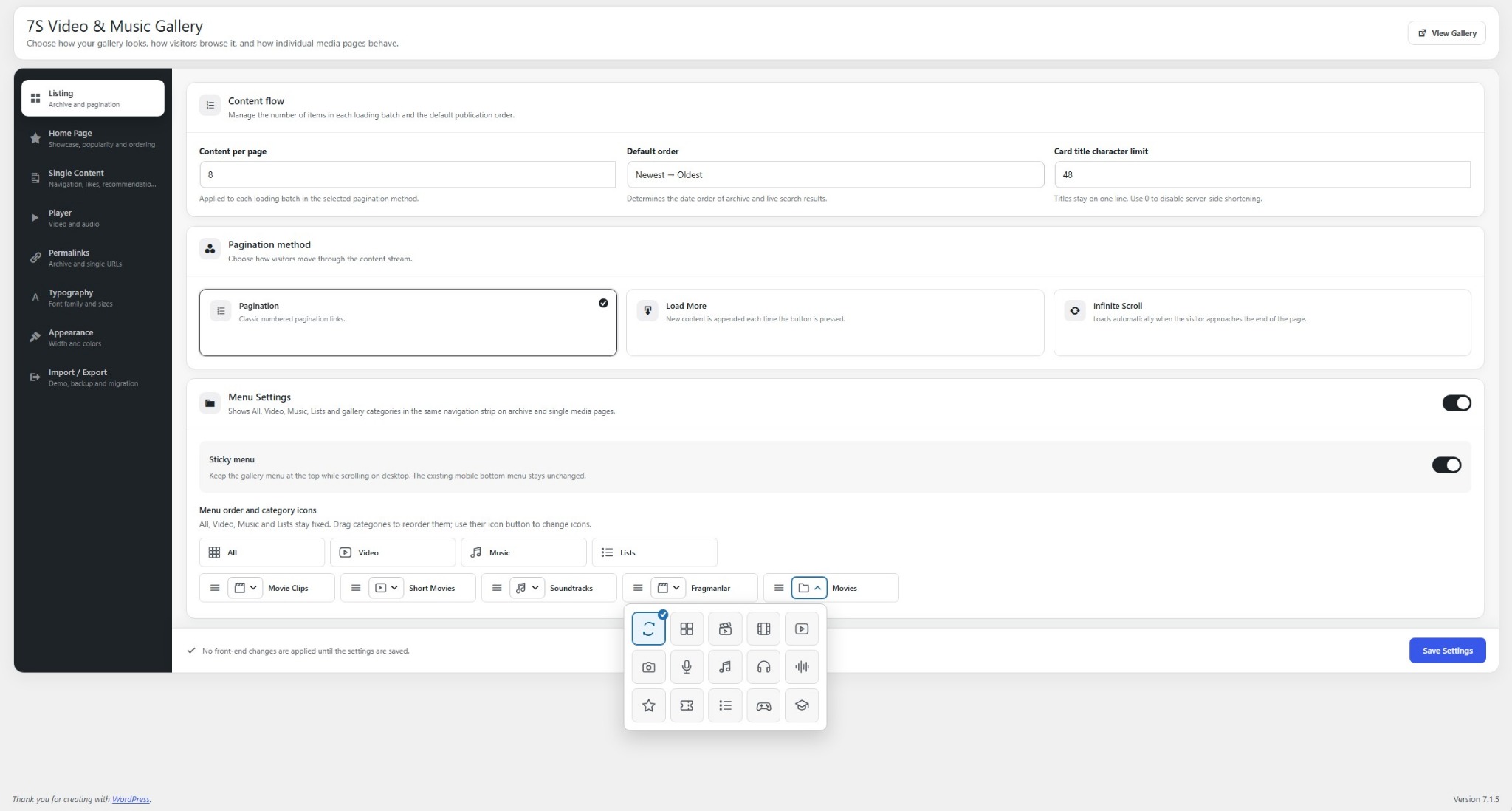
The Listing settings in 7S Video & Music Gallery control the gallery archive’s content flow, how visitors reach subsequent items and how gallery navigation works. Set the item count, order, card titles and pagination method to suit your gallery.
Open 7S Gallery → Settings → Listing in the WordPress dashboard.
 Enlarge ⤢
Contents
- Content flow
- Pagination method
- Compare pagination methods
- Menu Settings
- Menu order and category icons
- Save settings
- Troubleshooting
1. Content flow
This section determines how many items are loaded at a time, their publication-date order and the length of card titles.
Content per page
Set the number of media items per load to 1–48. The default is 12. This value applies to all three pagination methods. For example, with 12 selected, the first batch contains 12 items and each subsequent page or load adds up to 12 more.
A smaller number can lighten the initial load; more items give visitors a larger selection at once. Independent homepage sections such as Hero Area, Showcase and Most Liked have their own settings.
Default order
| Option | Purpose |
|---|---|
| Newest → Oldest | The most recently published items appear first. This is the default. |
| Oldest → Newest | The earliest published items appear first. |
This setting determines the default date order of archive and live search results. Most Liked uses its own like-based order.
Card title character limit
Limit visible card titles to 0–200 characters. The default is 48. Titles are kept on one line. Selecting 0 disables server-side shortening; visual overflow control based on screen width may still apply. The original title in the database is not changed, only the title shown on cards.
2. Pagination method
Choose one of three methods for the gallery’s content flow. Only one is active at a time.
Pagination
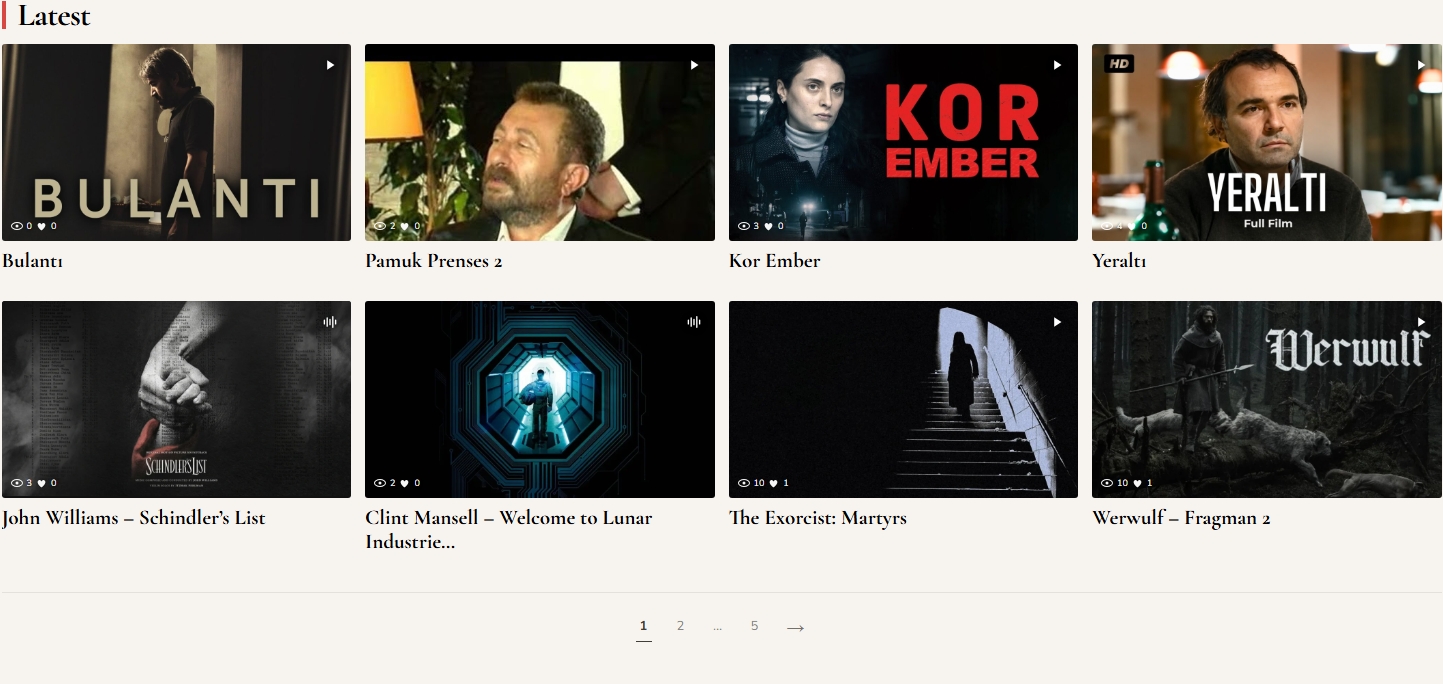
Traditional numbered page links are used. Visitors click a page number or navigation link below the content flow to move to the previous or next batch. The corresponding archive page opens. This is the default method.
 Enlarge ⤢
Suitable for large archives where visitors want direct access to a specific page.
Load More
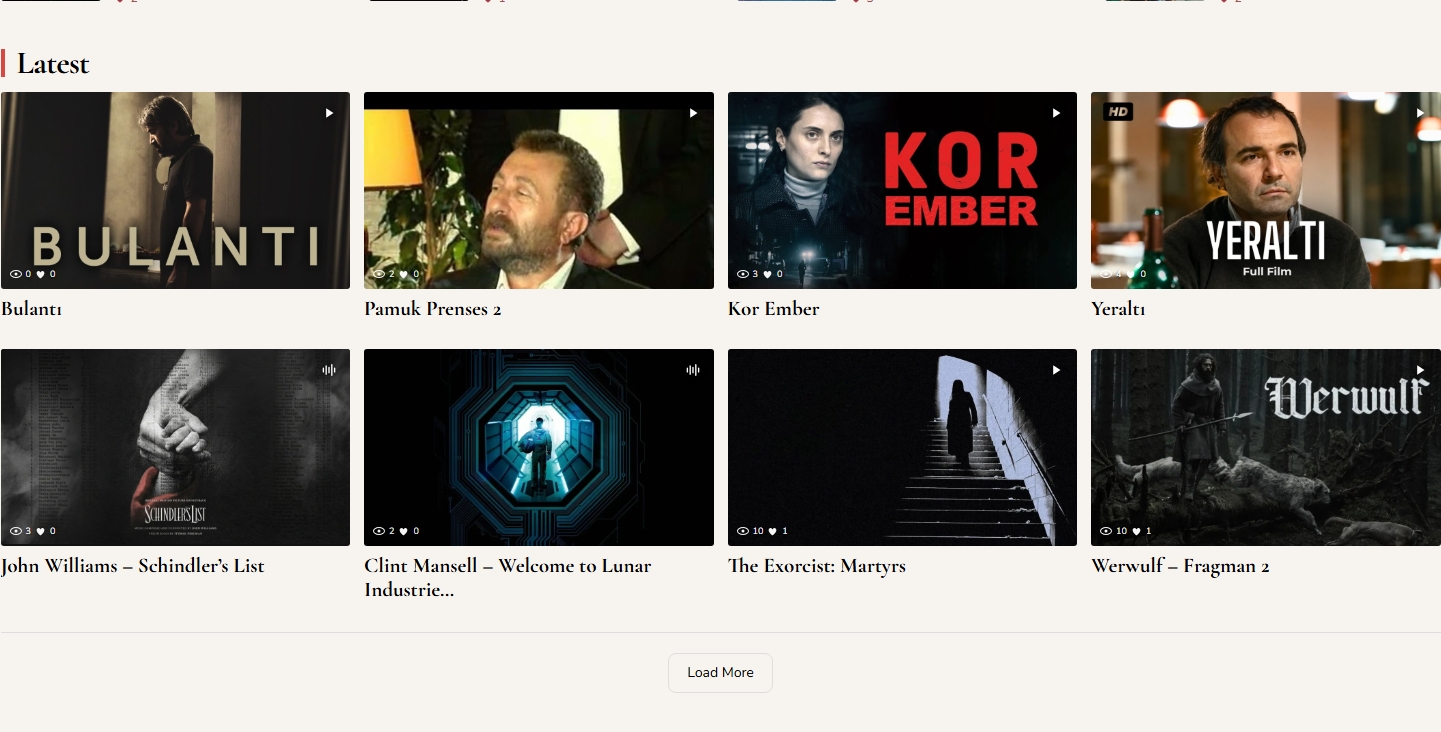
When a visitor clicks Load More below the content flow, the next batch is appended to the existing cards. Previously loaded items remain visible. Each click loads the number specified in Content per page, or only the remaining items if there are fewer.
 Enlarge ⤢
Suitable for visitors who want continuous browsing while controlling when more items load.
Infinite Scroll
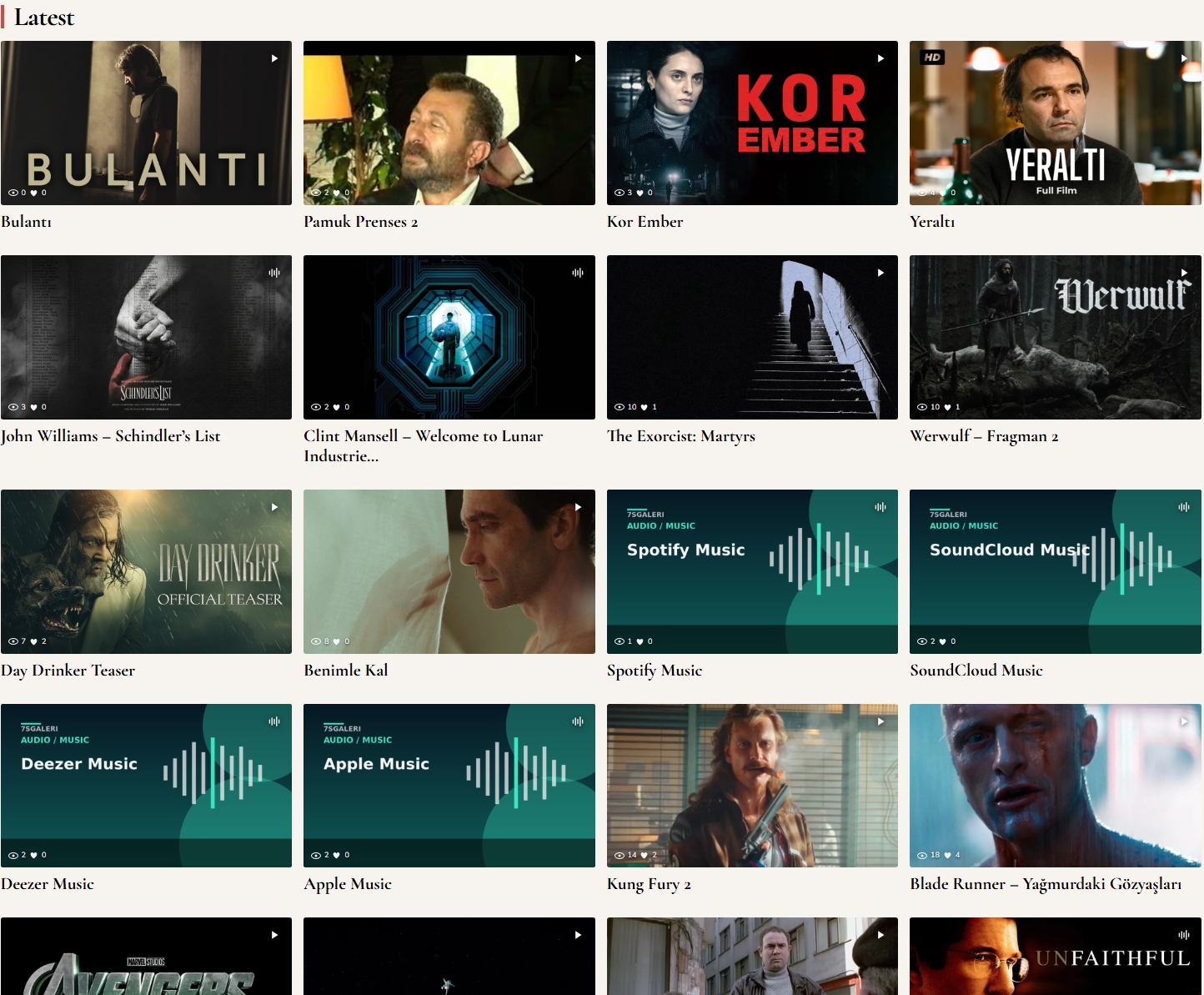
When visitors approach the end of the content flow, the next batch loads automatically and is appended to the existing cards. There is no need to click a button or page number. Loading stops when no more items are available.
 Enlarge ⤢
Suitable for uninterrupted mobile browsing and visual galleries. In very long feeds, reaching the footer or returning to a previously seen item may be harder than with numbered pagination.
3. Compare pagination methods
| Feature | Pagination | Load More | Infinite Scroll |
|---|---|---|---|
| Open more content | Page number | Button click | Automatic on scroll |
| Existing cards | New page opens | Retained | Retained |
| Loading control | Visitor | Visitor | Automatic |
| Recommended use | Structured archive and page access | Controlled continuous feed | Continuous discovery |
All three methods use the same gallery items and content count. Your selection does not delete or duplicate media records; it changes how visitors navigate.
4. Menu Settings
Use the Menu Settings switch to enable or disable gallery navigation. The menu gives access to All, Video, Music, Lists and gallery categories on archive and single media pages.
Sticky menu
When enabled, the desktop menu remains at the top of the screen while visitors scroll. It is disabled by default. The existing mobile bottom navigation layout is not affected.
This gallery menu is separate from the WordPress theme’s main navigation. Search visibility is controlled by Show gallery search under Home Page → Hero Area.
5. Menu order and category icons
All, Video, Music and Lists are fixed menu items. Their order cannot be changed in this setting. Gallery categories can be reordered by drag and drop.
- Open Menu order and category icons.
- Drag a category to the desired position using its handle.
- Click its icon button to open the icon picker.
- Select an icon or use automatic selection.
- Save settings.
Category order does not change category names or item classification. See Categories, Tags and Covers for category management.
6. Save settings
- Set content per page, default order and the card title character limit.
- Choose one of the three pagination methods.
- Configure menu visibility, Sticky menu and category order.
- Click Save Settings.
- Open the archive, test loading another batch if enough items exist, and check desktop and mobile views.
7. Troubleshooting
| Situation | What to check |
|---|---|
| Page numbers or loading button are missing. | Check the pagination method and whether more eligible published items exist beyond the first batch. |
| Infinite Scroll does not load more content. | Check that more items remain, the setting was saved, and there are no JavaScript or network errors. |
| Content order is unexpected. | Check Default order and publication dates. Showcase and Most Liked have separate ordering rules. |
| Card titles are truncated. | Increase Card title character limit or use 0. Single-line display remains subject to available screen width. |
| Gallery menu is missing. | Verify that Menu Settings is enabled. |
| Sticky menu does not change mobile navigation. | This is expected; Sticky menu affects desktop navigation. |
| Fixed menu items cannot be moved. | All, Video, Music and Lists are fixed; only categories can be reordered. |
Related guides: Hero Area · Appearance · Typography · Permalinks.