Adding Items to Lists
In 7S Video & Music Gallery, you do not need to add your media to the main gallery before creating a list. You can use existing gallery content, select audio and video files uploaded to WordPress, or add external media URLs directly to a list.
Open 7S Gallery → Lists in the WordPress dashboard. Create a list with Add New or edit an existing one. The list item area has three source tabs. You can switch between them while editing the same list.
Contents
- Gallery Content
- Media Library
- External Media
- Also add this item to the main Gallery archive
- Manage selected items
- Publish and check the list
- Troubleshooting
1. Gallery Content
Use this method to include videos or music already published in your main gallery archive without recreating them.
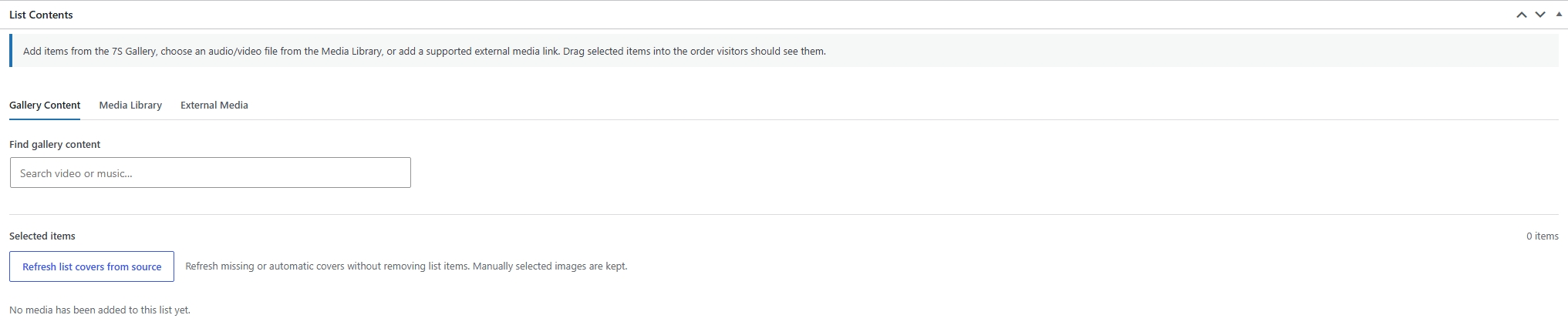
- Open the Gallery Content tab.
- Enter the item title or a word you remember in Find gallery content. Enter at least two characters to start searching.
- Results display the cover image, title and item type (Video or Music).
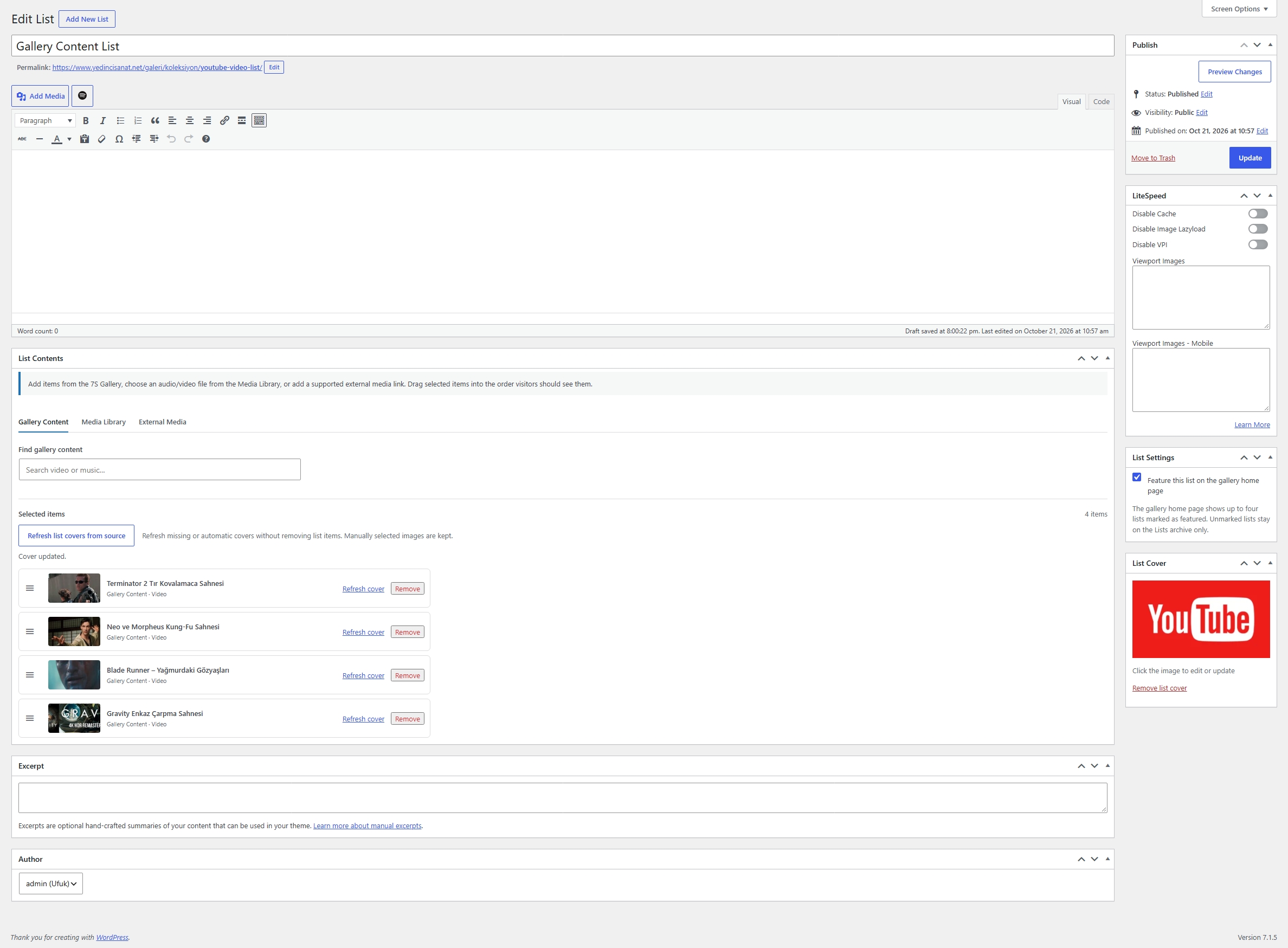
- Click Add beside the desired item. It is added to Selected items below. A check mark appears on the added item in the results; the same item cannot be added twice.
- Repeat the search for other content you want in the list.
 Enlarge ⤢
 Enlarge ⤢
Example: To make a list of film music already in your gallery, search for and select the track names. This does not duplicate your media content; the list uses the same items.
Search returns only published items included in the main gallery. Drafts and private items belonging only to another list do not appear in this search.
2. Media Library
Use your own audio or video files from the WordPress Media Library to create a list, for example a music list of MP3 files or a video list of MP4 files.
- Open the Media Library tab.
- Select Also add this item to the main Gallery archive if the file should appear there as well. Leave it unchecked to add it only to the list.
- Click Choose from Media Library.
- In the WordPress dialog, select a previously uploaded audio or video file. To use a new file, upload it in the Upload files tab and select it.
- Click Add to List. The plugin detects the file type automatically and uses its Media Library title.
- The media appears in Selected items when the process is complete. Repeat for other files. Select one file at a time.
Only audio and video files are accepted. Images or PDF documents cannot be added as list items. Upload limits, permitted file types and playback support depend on WordPress, server and browser settings. Editing the file’s title before uploading or in the Media Library ensures the new media item is added with the intended name.
3. External Media
Add content from supported platforms such as YouTube, Vimeo, YouTube Music, Spotify, Apple Music, SoundCloud and Deezer, or direct audio/video file URLs, without adding it to the gallery first.
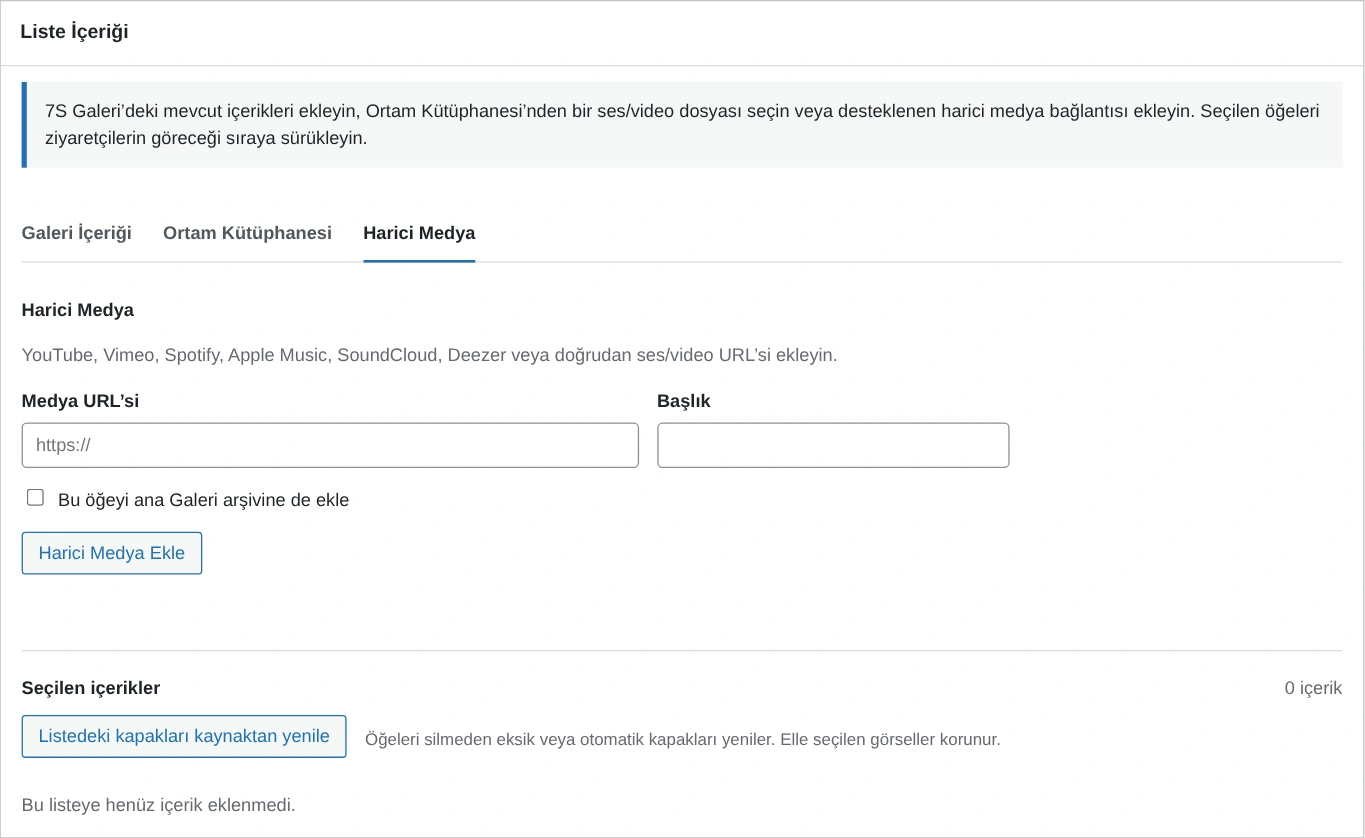
- Copy the sharing link of the video or track from the platform.
- Open External Media in the list editor.
- Paste the link into Media URL. Use a valid media URL rather than iframe embed code.
- Enter the name that should appear in your list in Title. This field is required.
- Select the appropriate checkbox if the content should also appear in the main gallery archive.
- Click Add External Media. The plugin validates the URL and automatically identifies the media type and source. On success, the item appears in Selected items and the URL and title fields are cleared.
- Repeat for each new media URL.
 Enlarge ⤢
Examples of supported links
| Source | URL type |
|---|---|
| YouTube / Vimeo | Video sharing URL |
| YouTube Music / Spotify / Apple Music | Music sharing URL |
| SoundCloud / Deezer | Supported audio content link |
| Direct video | MP4, WebM, OGV or M3U8 file URL |
| Direct audio | MP3, M4A, WAV, OGG, OGA or AAC file URL |
Provider embedding permissions, regional restrictions and browser support can affect playback. Some music services may offer a preview rather than a full track. See Supported Media Sources for details.
4. Also add this item to the main Gallery archive
This option in Media Library and External Media determines where newly created media content appears.
| Selection | Result |
|---|---|
| Unchecked (default) | The new item is used only in the list for which it was created. It does not appear as a separate video or music card in the main gallery archive. |
| Checked | The new item is added to the list and published as independent media content in the main gallery archive. |
Example: If you create a ten-track music list and do not want its tracks to appear individually in the main gallery archive, leave the box unchecked. Select it if each track should be accessible from both the list and the main gallery.
Important: New media added with the box checked may be published in the main gallery before the list itself is published. If an accessible, previously published main gallery record has the same file or source URL, the plugin reuses it instead of creating a duplicate. Leaving the box unchecked does not hide a previously published item from the main gallery.
5. Manage selected items
Regardless of the method used, items appear in Selected items. Here you can see their number, titles, sources and available covers.
Reorder items
Drag each item up or down using its handle on the left. This determines the order visitors see on the list page.
Remove an item
Click Remove next to an unwanted item. Removing independently published media from a list does not delete it from the main gallery. Auxiliary media records created solely for this list and no longer used may be cleaned up when the list is saved.
Refresh covers
Refresh cover beside an item attempts to retrieve its source cover again. It may also replace a manually selected cover. Refresh list covers from source refreshes missing or automatically generated covers in bulk while preserving manually selected images. If the source does not provide a cover, the existing image is retained. Item order and list contents are not changed.
6. Publish and check the list
Edit the list title and optional description, select a cover and check the order. In List Settings, you can feature the list on the gallery homepage. Click Publish for a new list or Update for an existing one.
Open Lists in the gallery menu or the list’s own URL to check item order and playback. Automatic next-item playback depends on the player and provider permissions.
Related guides: Creating Lists · Playback Behavior.
7. Troubleshooting
| Issue | What to check |
|---|---|
| Content is not found. | Enter at least two characters. Verify that it is published and included in the main gallery archive. |
| File cannot be selected. | Verify that the file is audio or video, the upload is complete and you have permission to upload files. |
| External media is not added. | Verify that a valid, supported media URL and a title were entered. |
| Added content does not appear in the main gallery. | Check whether Also add this item to the main Gallery archive was selected when the new item was created. |
| List order has not changed. | Update the list after reordering and reopen the visitor-facing page. |
| Media cannot be played. | Check the URL, embedding permissions and browser support for the file. |