Home Page → Showcase Settings
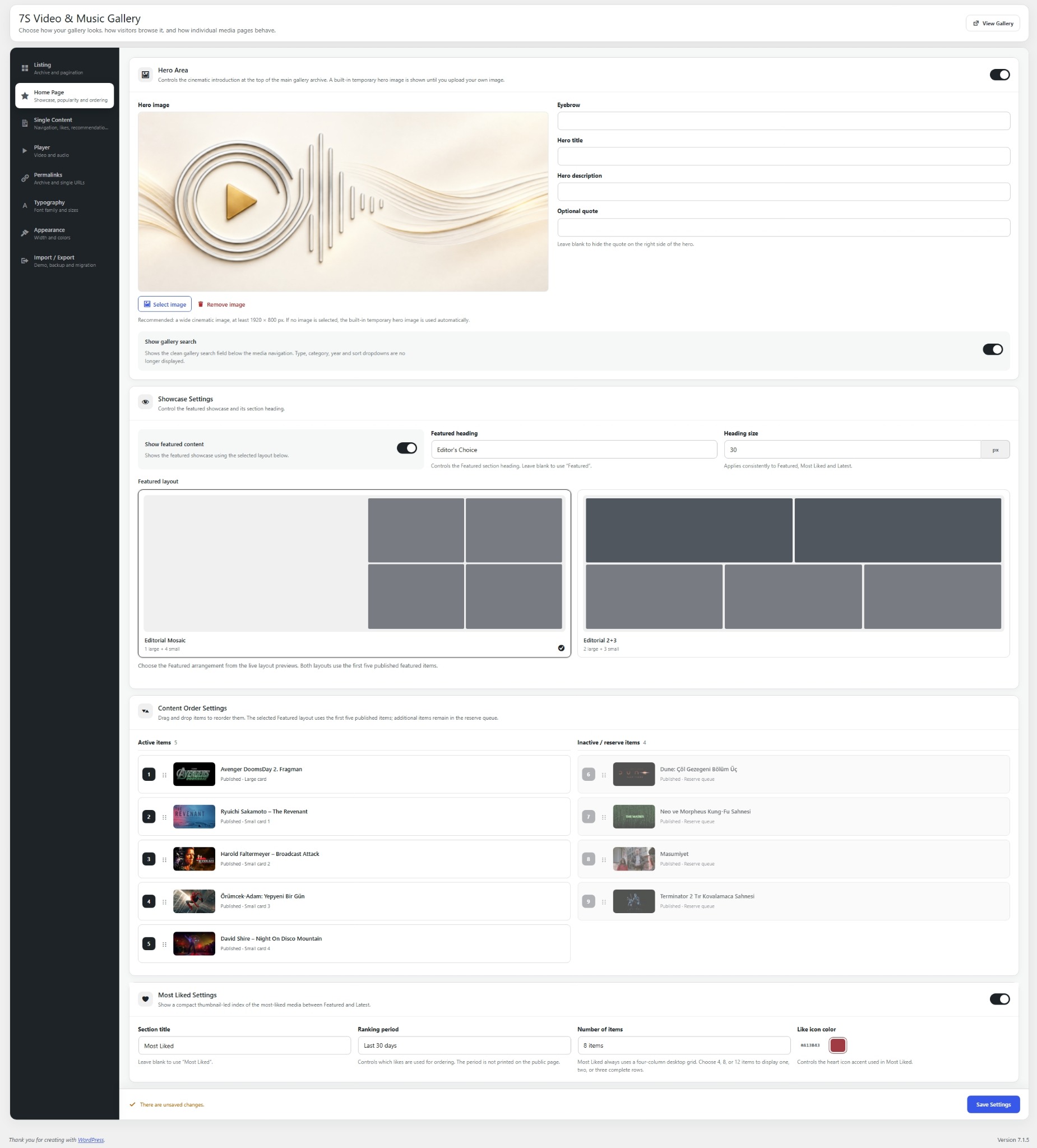
Showcase Settings in 7S Video & Music Gallery let you highlight selected video and music items on the gallery homepage. Choose and order the items yourself, then select one of two editorial layouts. The showcase is distinct from content automatically sorted by likes or publication date.
Open 7S Gallery → Settings → Home Page → Showcase Settings.
 Enlarge ⤢
Contents
- Select content for the showcase
- Enable the showcase
- Section title and title size
- Editorial Mosaic
- Editorial 2+3
- Compare showcase layouts
- Content Order Settings
- Save settings
- Troubleshooting
1. Select content for the showcase
First choose the items to feature in the media editor.
- Open the video or music record you want to highlight in the 7S Gallery menu.
- Select Feature this content.
- Publish the item or click Update for an existing record.
- Repeat for the other records you want to display.
Both showcase layouts use up to five published featured media records. You may mark more than five; the first five are included and the rest remain available. Marking a record does not create a separate copy. Removing its featured flag does not delete it.
2. Enable the showcase
Enable Show featured content under Home Page, then select the preferred showcase layout. Make sure eligible published and featured items exist.
Disabling the showcase only hides the homepage showcase. It does not delete featured items or their cards in the ordinary gallery archive.
3. Section title and title size
Set the text displayed above the showcase in the section title field, such as Featured, Editor’s Choice or Featured Content. Use the title size control to adjust its appearance. This does not change the media records’ own titles.
Choose suitable cover images to keep showcase text readable. See Categories, Tags and Covers.
4. Editorial Mosaic
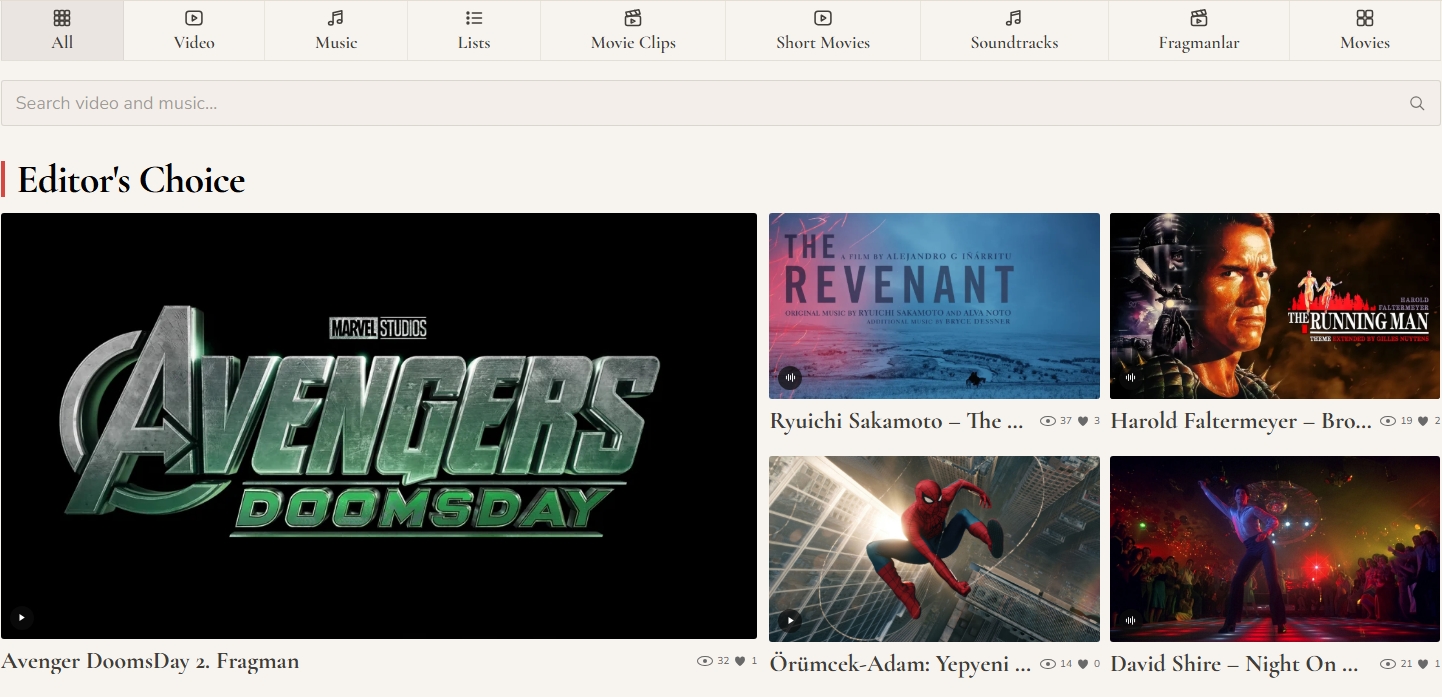
Editorial Mosaic is an editorial showcase layout with one large card and four smaller cards. The first item is emphasized in the large card, while the following four appear in smaller cards. Choose this layout when you want one main item to stand out.
 Enlarge ⤢
For example, use the large card for a newly released trailer and the smaller cards for selected videos and music.
5. Editorial 2+3
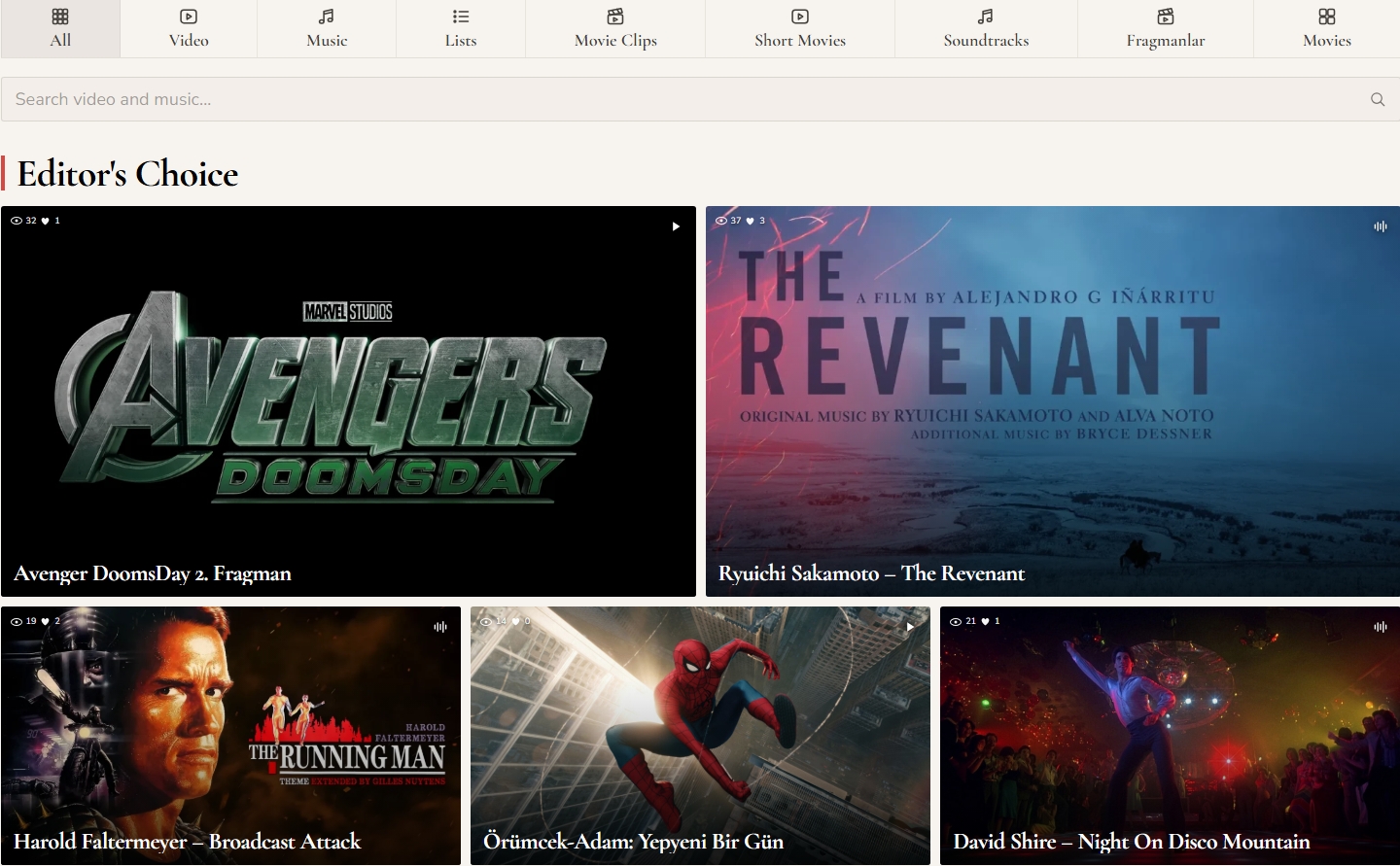
Editorial 2+3 uses two large cards at the top and three smaller cards below. The first two items receive similar visual emphasis, with the next three on the second row. It provides a balanced choice for highlighting two important items together.
 Enlarge ⤢
6. Compare showcase layouts
| Feature | Editorial Mosaic | Editorial 2+3 |
|---|---|---|
| Capacity | Up to 5 | Up to 5 |
| Large cards | 1 | 2 |
| Small cards | 4 | 3 |
| Visual emphasis | First item | First two items |
| Recommended use | One main item and supporting selection | Two main items and balanced selection |
Both layouts use the same featured items and order. Changing the layout does not require selecting the records again; only their presentation changes. The screenshots above show desktop examples. On mobile, the layout adapts to screen width.
7. Content Order Settings
Reorder featured media by drag and drop in Content Order Settings on the Home Page tab.
- Find the featured content list.
- Move the item for the large card to the first position.
- In Editorial 2+3, move the item for the second large card to the second position.
- Arrange the remaining three or four items in the desired order.
- Save the settings and check the homepage.
If more than five items are featured, change their order to change which five appear. If fewer than five eligible published items exist, the full five-item layout cannot be populated. Feature five eligible records to see the complete layout.
This order does not change the Most Liked ranking or the chronological order of the general gallery feed.
8. Save settings
- Feature the media records you want to showcase.
- Enable Show featured content.
- Choose Editorial Mosaic or Editorial 2+3.
- Set the section title, title size and content order.
- Click Save Settings.
- Open View Gallery and check the layout on desktop and mobile.
9. Troubleshooting
| Situation | What to check |
|---|---|
| Showcase is missing. | Ensure Show featured content is enabled and published featured media records exist. |
| Desired item is not in a large card. | Move it to the first position, or the second for Editorial 2+3 when appropriate, and save. |
| More than five items are featured but only five appear. | Both layouts use the first five published featured items. |
| Showcase layout looks incomplete. | Feature five eligible published records and check their cover images. |
| The layout changed but the same items appear. | This is expected. Layout changes presentation, not content selection. |
| Items should be ranked by likes. | The showcase is curated manually. Use Most Liked for like-based ranking. |
Related guides: Hero Area · Most Liked · Listing · Typography.