Featured Lists
The Featured Lists section of 7S Video & Music Gallery brings video and music lists to the gallery homepage. Unlike the showcase, which displays individual media records, this section links directly to list pages.
Contents
- Create and feature a list
- Homepage list selection and order
- Gallery homepage appearance
- Typography settings
- Frequently asked questions
1. Create and feature a list
Create a list or edit an existing one from the 7S Gallery menu. Add video and music items using Gallery Content, Media Library or External Media.
- Set the list title, description and cover image.
- Select Feature this list on the gallery home page in List Settings.
- Publish the list or click Update.
- Repeat for other lists you want to feature.
The featured flag affects only homepage list selection. Removing the flag does not delete the list or its items. Featuring individual media for the showcase and featuring a list are separate actions.
See Creating Lists · Adding Items to Lists.
2. Homepage list selection and order
Version 2.5 displays up to four list cards on the homepage according to these rules:
| Position | Selection rule |
|---|---|
| First card | The most recently published list is included automatically, even without the featured flag. |
| Second, third and fourth cards | Selected from the other published featured lists, ordered by menu_order first and publication date when tied. |
The newest list is not displayed twice if already featured. Fewer than four cards may appear if there are insufficient featured lists. If no published lists exist, the section is hidden. Automatic selection of the newest list does not change its featured flag.
Example: If A is the newest published list and B, C and D are featured, the homepage may display A, B, C and D. When a newer list E is published, E becomes the first card and the other three are selected again from featured lists.
3. Gallery homepage appearance
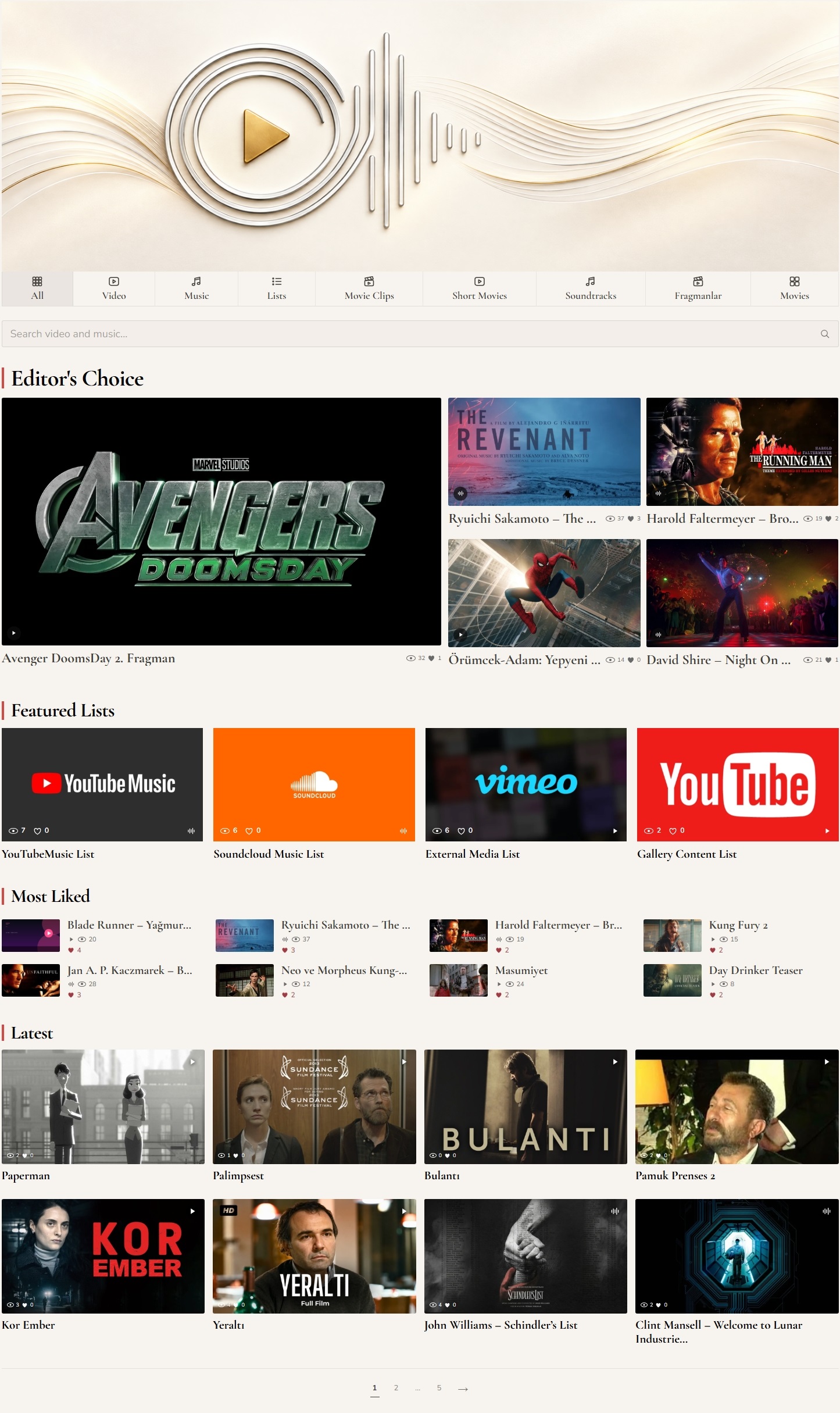
Featured Lists appears on the first, unfiltered gallery archive page after the showcase and before Most Liked and Latest Content. It is independent of the showcase layout. This release does not have a separate homepage visibility switch or card count setting for Featured Lists; the section is generated automatically from published lists.
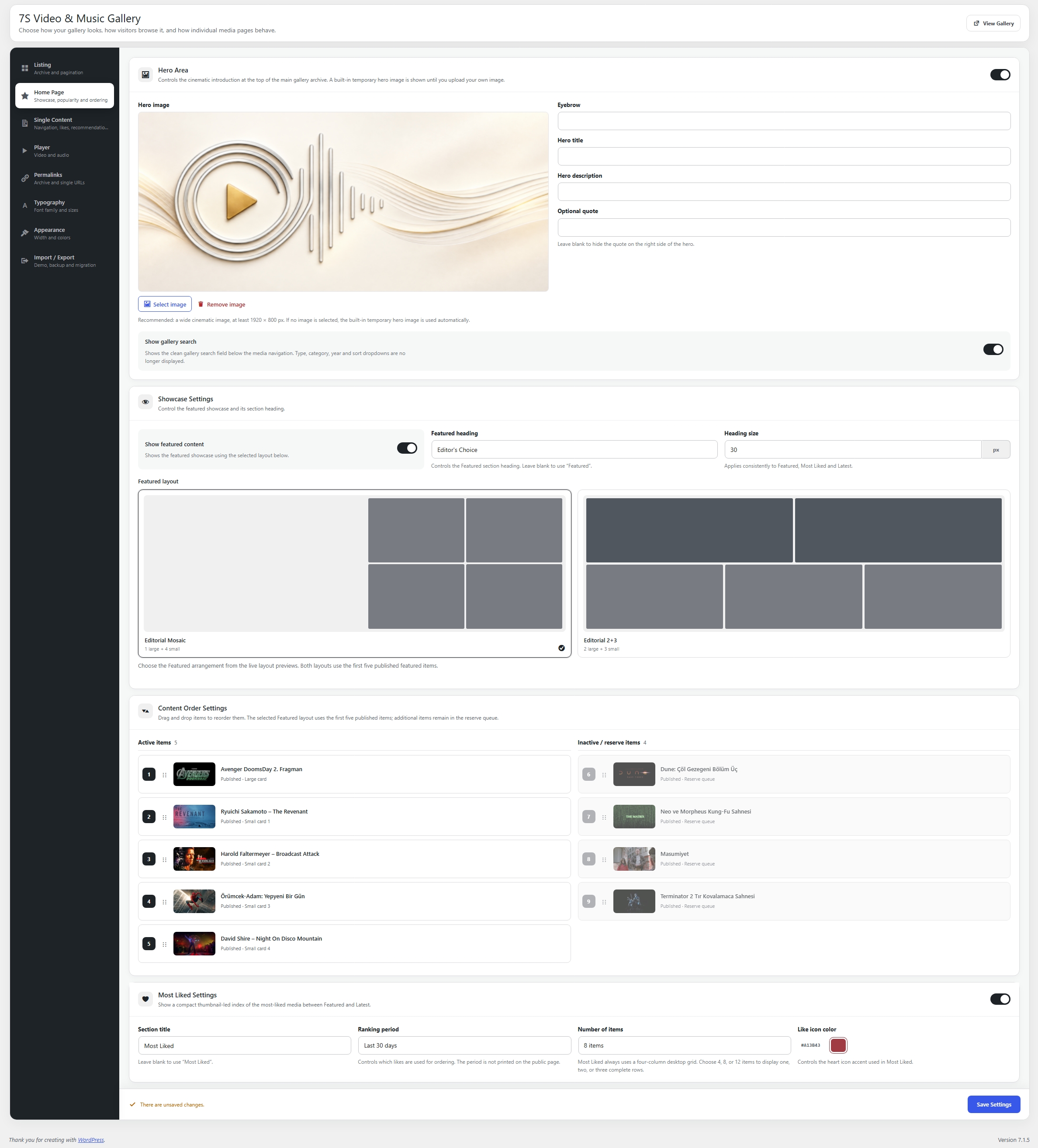 Enlarge ⤢
Each card displays a cover image, list title, media-type icons and view information. A like control appears when likes are enabled. Lists containing both video and music may show both icons. Clicking the cover or title opens the list page. The layout adapts to the screen width.
 Enlarge ⤢
4. Typography settings
In 7S Gallery → Settings → Typography → Featured Lists Area, separately choose the font family, weight, desktop size and mobile size for the section heading and list card titles.
| Text area | Default desktop size | Default mobile size |
|---|---|---|
| Section heading | 34 px | 26 px |
| List card title | 21 px | 16 px |
Font sizes can be set from 9 to 120 px. The mobile value cannot exceed the corresponding desktop value. These controls affect only the Featured Lists area. Typography for other list pages is managed separately. See Typography.
5. Frequently asked questions
| Situation | Explanation or solution |
|---|---|
| Featured Lists is missing. | Verify that at least one list is published and that you are on the first unfiltered archive page. |
| Why is an unselected list visible? | The newest published list automatically occupies the first card. |
| More than four lists are featured. | The homepage displays up to four lists. Other published lists remain available in the Lists archive. |
| Only two or three lists appear. | There may not be enough published featured lists in addition to the newest one. |
| I want to reorder lists. | The newest list automatically comes first. Other cards depend on the featured flag, menu order and publication date. Showcase Content Order Settings does not reorder this section. |
| I no longer want to feature a list. | Edit it, clear its featured flag and save. If it is the newest published list, it may still occupy the first card. |
Related guides: Showcase Settings · Most Liked · Playback Behavior.