Settings → Import / Export
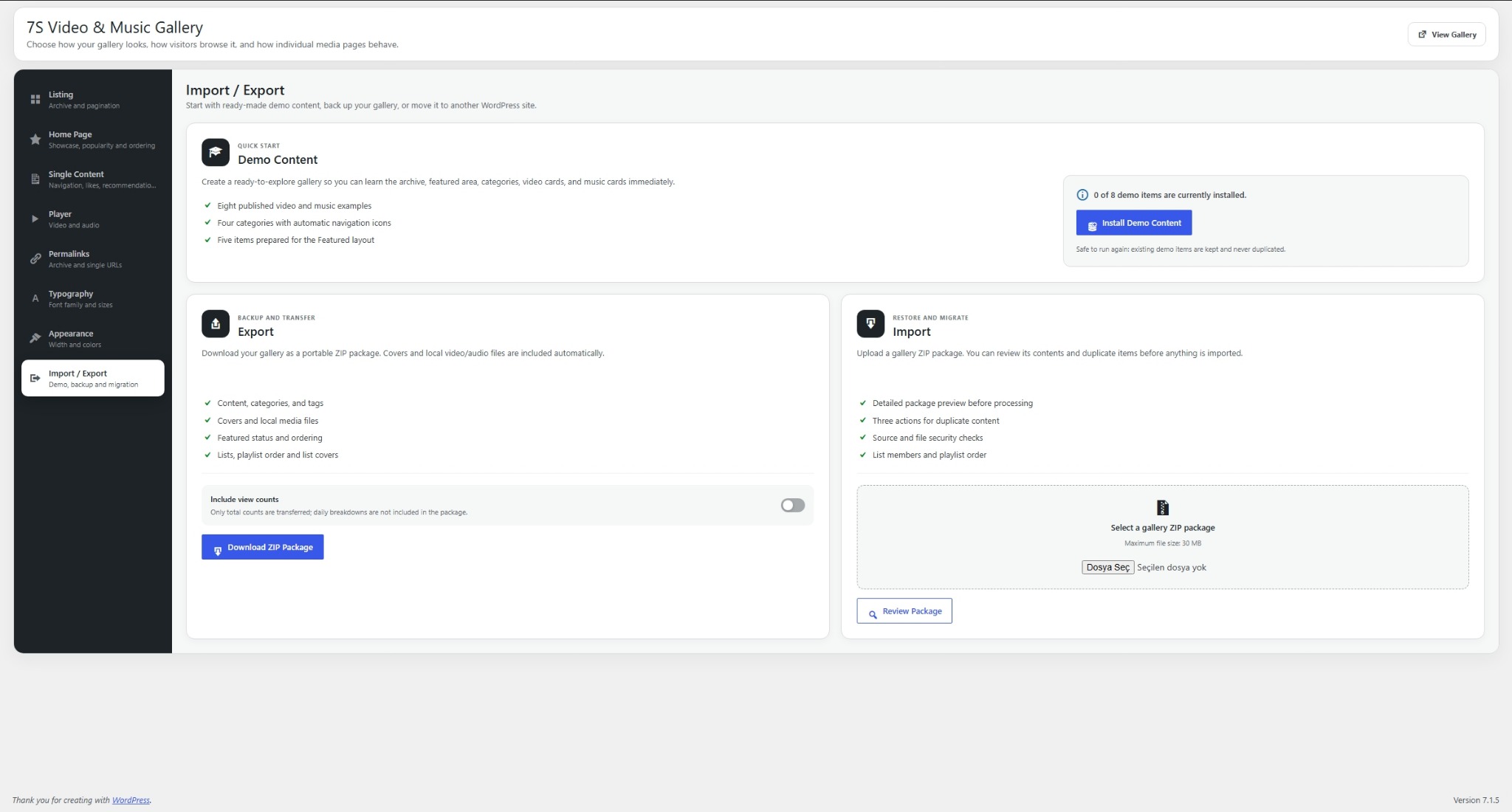
The Import / Export section of 7S Video & Music Gallery lets you explore the gallery with ready-made example content, back up your gallery in a portable ZIP package, and transfer it to another WordPress installation. You do not have to recreate video and music records, covers and lists individually.
Open 7S Gallery → Settings → Import / Export in the WordPress dashboard. This section is available to users with administrative permissions.
 Enlarge ⤢
Contents
- Demo Content
- Export
- ZIP package contents
- Transfer view counts
- Import and package review
- Handling existing content
- Move the gallery to another WordPress website
- Troubleshooting
1. Demo Content
Explore the archive, category menu, showcase and video and music cards without creating your own content first. The demo tool creates:
- Eight published video and music items.
- Four categories with automatic navigation icons.
- Five featured items for the showcase layout.
- Check the number of installed examples on the Demo Content card. For instance, 0 / 8 means no demo items are installed.
- Click Install Demo Content.
- Check the result notice and open View Gallery in the upper right.
The tool can be run again: existing demo items are retained and identical examples are not duplicated. Missing demo items can be restored. Because examples are published records, they may be visible to visitors on a live site. Demo content is optional; you can add your own media directly.
See Demo Content.
2. Export
The export tool collects gallery content and related files into a portable ZIP package. Use it before moving the gallery to another website or to keep a separate copy of its content.
- Locate the Export card.
- Enable Include view counts to transfer total views. This option is disabled by default.
- Click Download ZIP Package.
- Keep the dated ZIP file in a safe location. You do not need to extract or manually modify it before importing.
Export does not delete source media. Package creation may stop if local audio/video files cannot be accessed; check the record identified in the error notice.
3. ZIP package contents
| Data | Included in transfer |
|---|---|
| Video and music items | Title, description, excerpt, slug, publication status, date, media type and source URL. |
| Categories and tags | Assigned categories and tags, including related taxonomy data and category hierarchy. |
| Cover images | Accessible cover files associated with media records. |
| Local media | Local audio/video files used as sources through the WordPress Media Library. |
| External media | Source URLs for YouTube, Vimeo, Spotify and other supported providers. Files hosted by the external services themselves are not downloaded. |
| Showcase | Featured media records and their showcase order. |
| Lists | Titles, descriptions, statuses, covers, featured flags, members and playback order. Media used only inside lists are also packaged. |
| Total views | Optional total view counts for media and lists. |
The package includes published, draft, pending, private and scheduled media and lists. It transfers only gallery-related data, not the entire WordPress Media Library or other posts and pages.
Data not included
Daily view history, likes, user accounts, theme and plugin files, and general gallery settings (typography, colors, permalinks and other appearance preferences) are not transferred. Unassigned categories and tags may need to be created separately at the destination. Content settings included in the package, such as showcase order, are distinct from general settings.
Important: A gallery ZIP is not a complete WordPress backup. Back up your database and wp-content files separately to retain the whole site, users, like history and all settings. The package may contain private or password-protected content; do not share it publicly.
4. Transfer view counts
When Include view counts is enabled, total counters are included in the ZIP. After reviewing the package at the destination, also select Import total view counts from the package. This option is displayed only for packages containing view data.
| Situation | Result |
|---|---|
| Counts excluded on export. | Package contains no view information. |
| Counts included but not selected on import. | Package counts are not applied to destination counters. |
| New content with count import enabled. | Package total is applied to the new record. |
| Existing content updated with count import enabled. | The higher of destination and package values is retained; values are not added together. |
| Existing content preserved using Skip. | Existing counter is unchanged. |
For example, if a destination video has 120 views and the matching package item has 150, using Update with view count import enabled preserves 150. Daily distribution and likes are not transferred. See Statistics.
5. Import and package review
Import adds a ZIP generated by 7S Gallery to an existing gallery or a new WordPress installation. Review its contents and select how existing records will be handled before importing.
Select a package
- Install and activate 7S Video & Music Gallery at the destination. Use a compatible version, preferably the same or a newer release.
- Open 7S Gallery → Settings → Import / Export.
- Select the previously downloaded file in Select a gallery ZIP package.
- Click Review Package.
Review Package does not add content yet. File structure, media files and source information are checked for suitability. The maximum upload size depends on WordPress and server settings. The 30 MB shown in the screenshot is specific to that example installation.
Import Preview
After successful review, the package version and creation date appear with these summary values:
| Preview field | Meaning |
|---|---|
| Total Content / New Content / Existing Content | Total media, new records and matching existing records. |
| Cover / Local Media | Cover and local media files. |
| Category / Tag | Category and tag data. |
| Lists / New Lists / Existing Lists | Total, new and matching lists when present in the package. |
The preview table shows title, media type and source, publication status and match result. Large packages show only the first 100 media items; the selected import rule applies to the entire package. Records marked Source warning can be imported but may require corrected URLs before playback.
To cancel, use Delete temporary package and cancel. Preview is temporary; if it expires, upload and review the ZIP again.
6. Handling existing content
Choose how to handle matching media or lists at the destination. The selection applies to all matched records.
| Option | Behavior | When to use |
|---|---|---|
| Skip | Keeps existing records and adds new content. Default. | When you do not want to overwrite current content. |
| Update | Updates matching records from package data and adds new records. | When updating gallery content from a package version. |
| New Copy | Creates new records and preserves existing ones. | When you want an independent second copy. Duplicates may result. |
When Skip is selected, matching existing media can be reused by newly created lists. Update may change existing titles, descriptions, covers, classifications and list orders, so back up first. Import does not reset the gallery by deleting all destination items absent from the package.
7. Move the gallery to another WordPress website
- Download the ZIP from the source site.
- Back up the destination database and files and activate a compatible plugin version.
- Upload the ZIP and click Review Package.
- Check preview information, source warnings and conflict strategy. Enable total view count import if needed.
- Click Start Import. Do not start a second import before completion.
- Review the result notice for added, updated and skipped media and lists.
- Open View Gallery and check the archive, categories, covers, players, local files, lists and playback order.
- Reconfigure destination permalinks, typography, width, colors and homepage settings as necessary. Plan redirects if the domain or URL structure changed.
For catchable import errors, the plugin attempts to clean up newly created records and files and restore updated records and showcase order. This is not a substitute for a full site backup; server interruptions require additional checks. Try large imports on a test site first when possible.
8. Troubleshooting
| Issue | What to check |
|---|---|
| ZIP cannot be created or read. | Verify PHP ZipArchive support and available temporary disk space. |
| Package exceeds upload limit. | Check the maximum shown in the panel. Ask hosting support to adjust PHP upload_max_filesize and post_max_size if needed. |
| Package is invalid or damaged. | Verify it is a complete, unmodified ZIP generated by 7S Gallery. Export it again if needed. |
| Import preview disappeared. | The temporary preview may have expired. Select and review the package again. |
| Existing items were not updated. | Skip preserves existing records. Back up before using Update. |
| Same media appears multiple times. | New Copy creates separate records. Check the conflict strategy before repeating import. |
| Imported media cannot play. | Check source warnings, URL accessibility and whether local files transferred. |
| Old daily statistics or likes are missing. | These are not included in the ZIP. Total views transfer only when the relevant export and import options are enabled. |
| Destination gallery looks different. | General settings are not included. Configure Appearance, Typography and other settings at the destination. |
Related guides: Demo Content · Safe Update · Permalinks · Statistics.