Permalinks
Permalinks settings let you define the URL structure of the 7S Video & Music Gallery archive and individual video, music and list pages. The default base is galeri, but you do not have to use it. Choose addresses that suit your site’s language, content structure or preferences.
Open Permalinks settings
Open 7S Gallery → Settings → Permalinks in the WordPress dashboard. URL structure contains two independent settings: Archive permalink and Single content permalink.
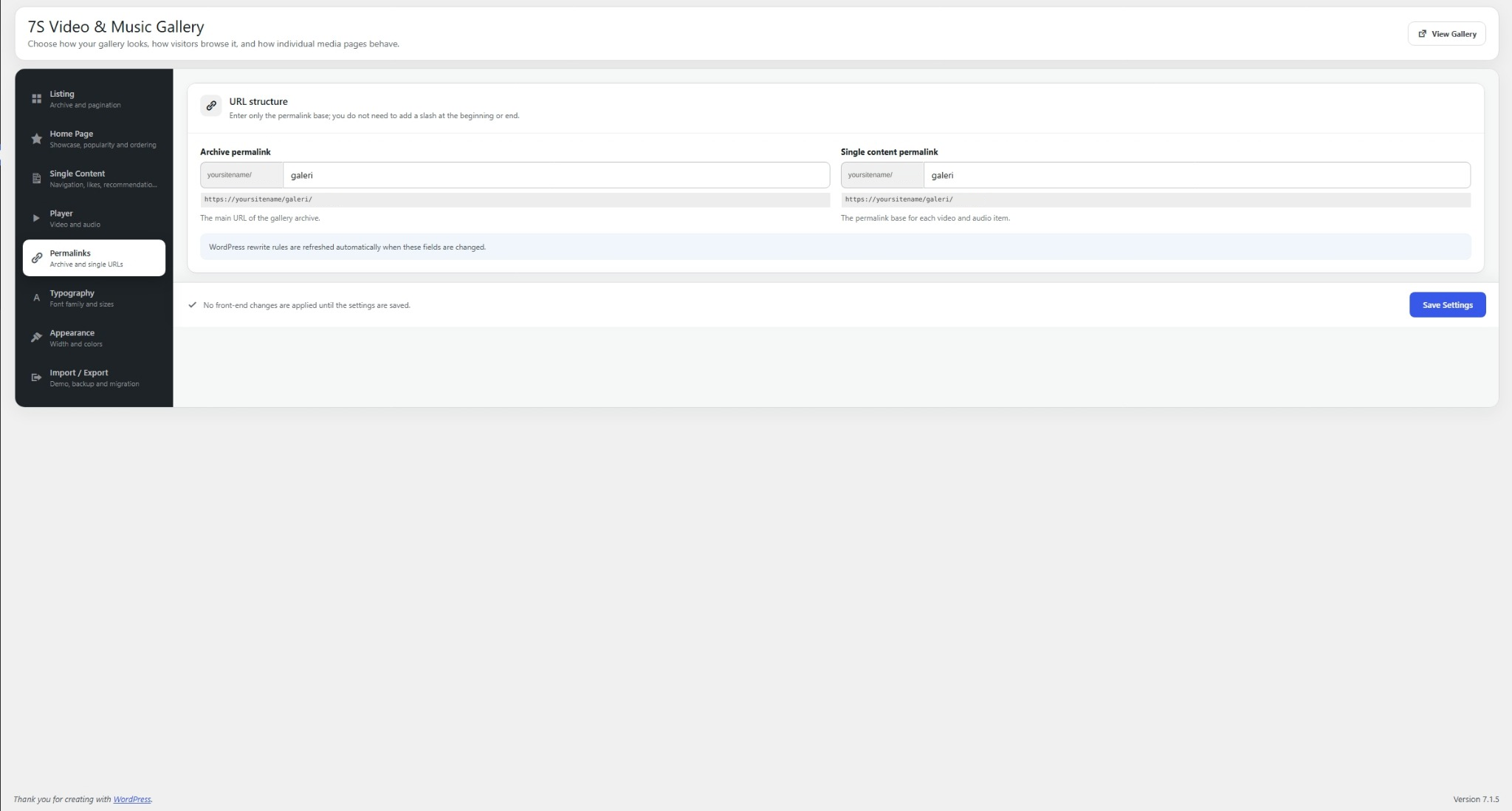 Enlarge ⤢
1. Archive permalink
This determines the main gallery archive URL where visitors can browse all video and music. The Lists archive base also follows this setting.
| Value entered | Gallery archive URL |
|---|---|
galeri (default) |
https://yoursitename/galeri/ |
medya |
https://yoursitename/medya/ |
gallery |
https://yoursitename/gallery/ |
video-music |
https://yoursitename/video-music/ |
The gallery archive is generated automatically. There is no need to create a separate WordPress page or add a shortcode.
2. Single content permalink
This determines the URL base of each video or music page. The item’s own slug is appended to the base. Single list pages also follow this setting.
| Value entered | Example single content URL |
|---|---|
galeri (default) |
https://yoursitename/galeri/example-video/ |
medya |
https://yoursitename/medya/example-video/ |
content |
https://yoursitename/content/example-video/ |
The setting is shared by all single video and music items; it does not create separate URL bases for video and music. Change each item’s slug in its WordPress editor.
3. Use different archive and single bases
Both fields may have the same value, as in the default structure, but they do not have to. For example, set the archive base to media and the single content base to content:
| Page type | Example URL |
|---|---|
| Gallery archive | https://yoursitename/media/ |
| Single video or music | https://yoursitename/content/example-video/ |
| Lists archive | https://yoursitename/media/koleksiyonlar/ |
| Single list | https://yoursitename/content/koleksiyon/example-list/ |
The koleksiyonlar and koleksiyon segments are fixed URL components used in version 2.5. They are independent of the List / Lists labels in the dashboard and cannot be edited separately in Permalinks. Replace yoursitename with your own domain.
4. Change and save URLs
- Enter the desired bases in Archive permalink and Single content permalink.
- Do not enter the domain,
https://, or leading and trailing slashes. Enter only the base, for examplemedia. - Check the URL previews below the fields. The single content preview shows only the base; actual item links include the media slug.
- Click Save Settings. Changes do not appear to visitors until saved.
- Use View Gallery in the upper right to open the new gallery URL. Check a video, music item and list page as well.
The plugin automatically refreshes WordPress rewrite rules when URL bases change. Under normal circumstances, you do not need to save WordPress’s general Permalinks settings again.
5. Changing existing URLs
For a new installation, define the URL structure before publishing content. Changing the address of an existing gallery or single item may invalidate shared and indexed links.
- Create 301 permanent redirects from old addresses to the corresponding new ones. Refreshing rewrite rules does not automatically create 301 redirects.
- Check custom links in menus, gallery links inside posts and URLs shared externally.
- Avoid URL bases that conflict with existing WordPress pages. If
/media/already belongs to a published page, choose another archive base. - Use short, descriptive, hyphen-separated words such as
film-music.
6. Add the gallery archive to the site menu
With classic themes, open Appearance → Menus in the WordPress dashboard. Select 7S Video & Music Gallery Archive from the gallery section and add it to the menu. Set the navigation label and position as desired. A custom link is not required. Save the menu.
7. Troubleshooting
| Issue | Solution |
|---|---|
| Gallery page returns 404. | Check that settings are saved and there is no conflicting page. If needed, open WordPress → Settings → Permalinks and click Save Changes without changing the existing structure. |
| Gallery opens but individual items do not. | Check Single content permalink and the current item URL. |
| Old URLs no longer work. | Redirect them to their corresponding new URLs using 301 redirects. |
| Lists archive URL changed. | Lists archive follows Archive permalink; individual list pages follow Single content permalink. |
Related guides: Getting Started · Creating Lists · Troubleshooting.