Playback Behavior
7S Video & Music Gallery lists let visitors play multiple videos or music items on the same page. Content is displayed in the order specified when creating the list. Visitors can select an item; supported media sources can automatically advance when playback ends.
Contents
- How the list player works
- Video lists
- Music lists and player controls
- Automatic next-item playback
- Shuffle
- Autoplay settings
- Troubleshooting
1. How the list player works
When a list page opens, the first item is displayed in the player. Playlist shows the item order, covers, titles and durations where available. Clicking an item switches the player on the same page to the selected media without navigating to another content page. Previous media stops and the player attempts to start the new media.
Reorder playback by dragging and dropping items in Selected items in the dashboard. Update the list to make the new order visible to visitors.
A list consisting solely of videos uses the video layout. If it contains at least one audio/music item, the music list layout is used. In both layouts, items can be selected directly from the playlist.
2. Video lists
Lists created from YouTube, Vimeo, video files uploaded to WordPress and supported direct video URLs display the main player alongside a vertical playlist.
- Open the list page and play the first video.
- To switch to another video, select its item in Playlist.
- When the video finishes, if its end event can be detected, the next video is selected and playback is attempted.
Playback, pause, seeking, volume and fullscreen controls depend on the video player in use. YouTube and Vimeo embeds use their own controls. Direct video files use the browser’s media player.
On desktop and mobile, select items from the vertical list. For long playlists, scroll down to reach other videos.
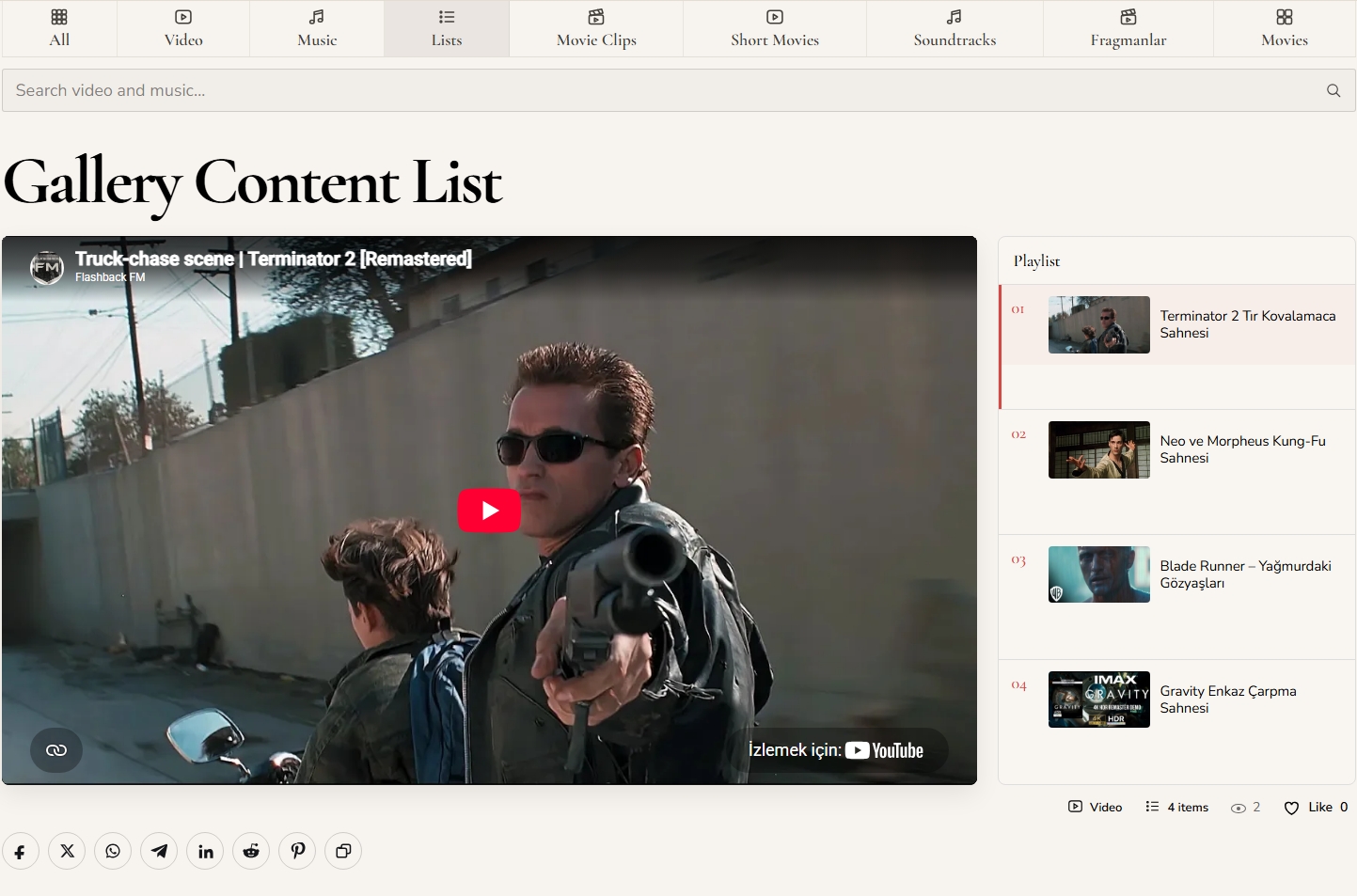
YouTube Video List
Example list created from YouTube videos previously added to the main gallery. Visitors can select and watch any video in the playlist on the same page.
 Enlarge ⤢
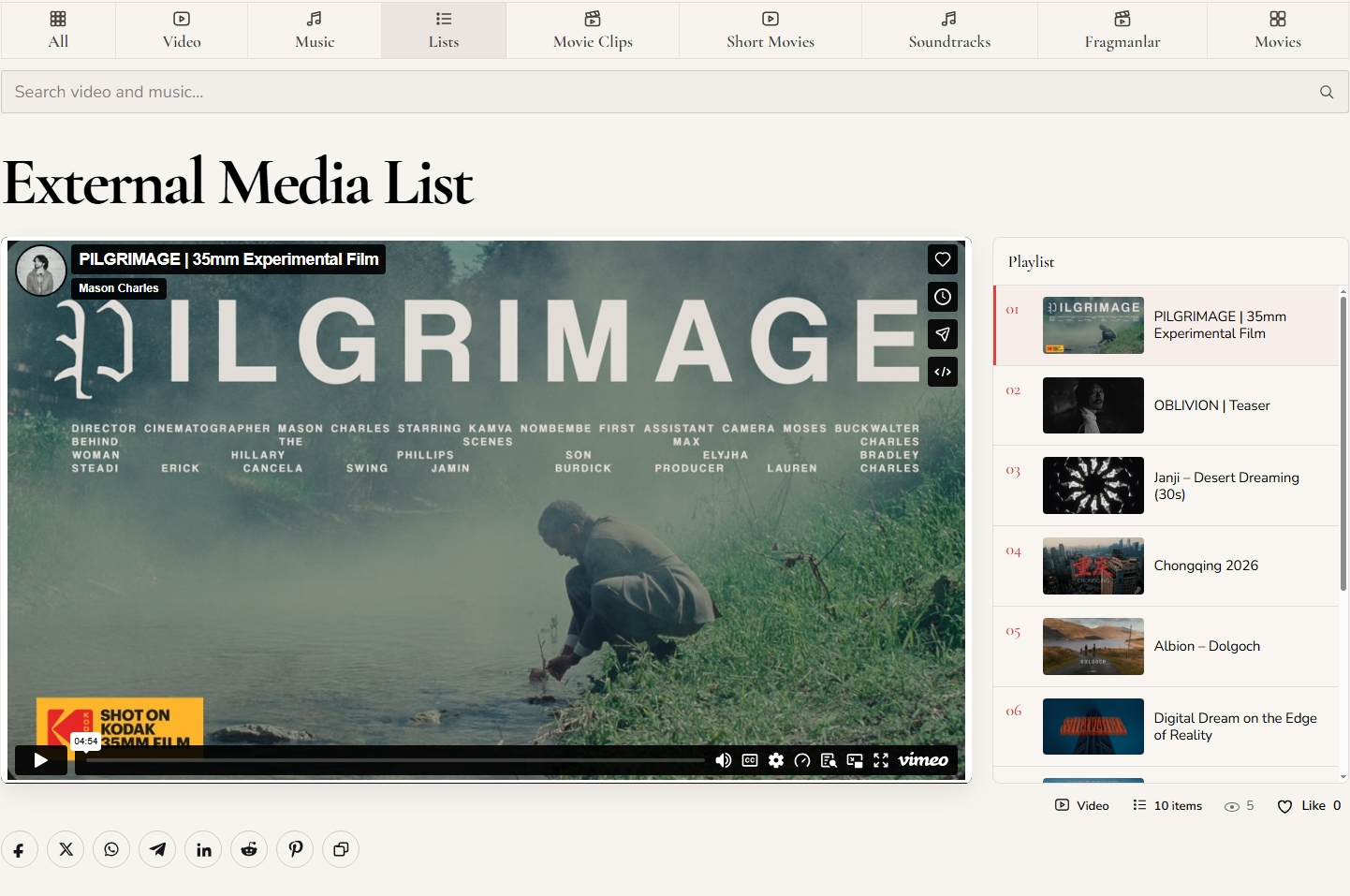
Vimeo Video List
Example list created from Vimeo videos using External Media. Vimeo’s own controls are used. Items in a long playlist can be scrolled vertically.
 Enlarge ⤢
3. Music lists and player controls
The player used in a music list depends on the selected item’s source. Audio files from the WordPress Media Library and direct audio URLs use the plugin’s built-in media controls. External music services may use their own embedded players.
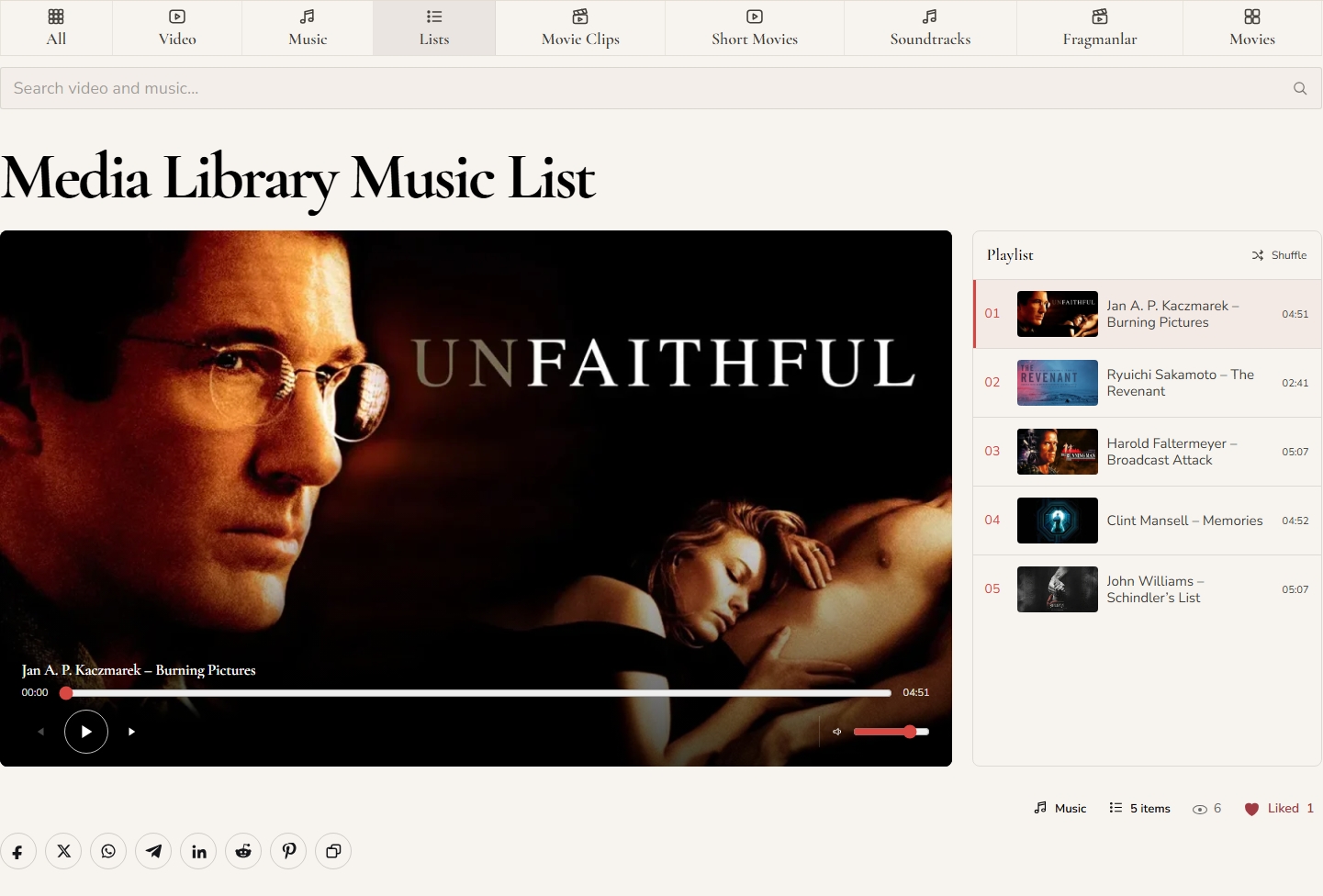
WordPress Media Library Music List
The built-in audio player presents play/pause, previous and next track, duration and volume controls over the selected track’s cover image. Shuffle is next to the Playlist heading.
 Enlarge ⤢
Built-in audio player
| Control | Purpose |
|---|---|
| Play / Pause | Starts or pauses playback of the selected track. |
| Previous / Next | Selects the previous or next item in the list. |
| Seek | Moves to a desired point in the track when duration is available. |
| Volume | Adjusts the built-in media player’s volume. |
| Duration | Displays elapsed time and total track duration when known. |
External music players
Spotify, Apple Music, SoundCloud, Deezer and YouTube Music use the provider’s embedded player. Duration, volume, seeking and playback controls may not all be manageable through the plugin’s own interface for every provider. Use the embedded player’s controls directly if necessary.
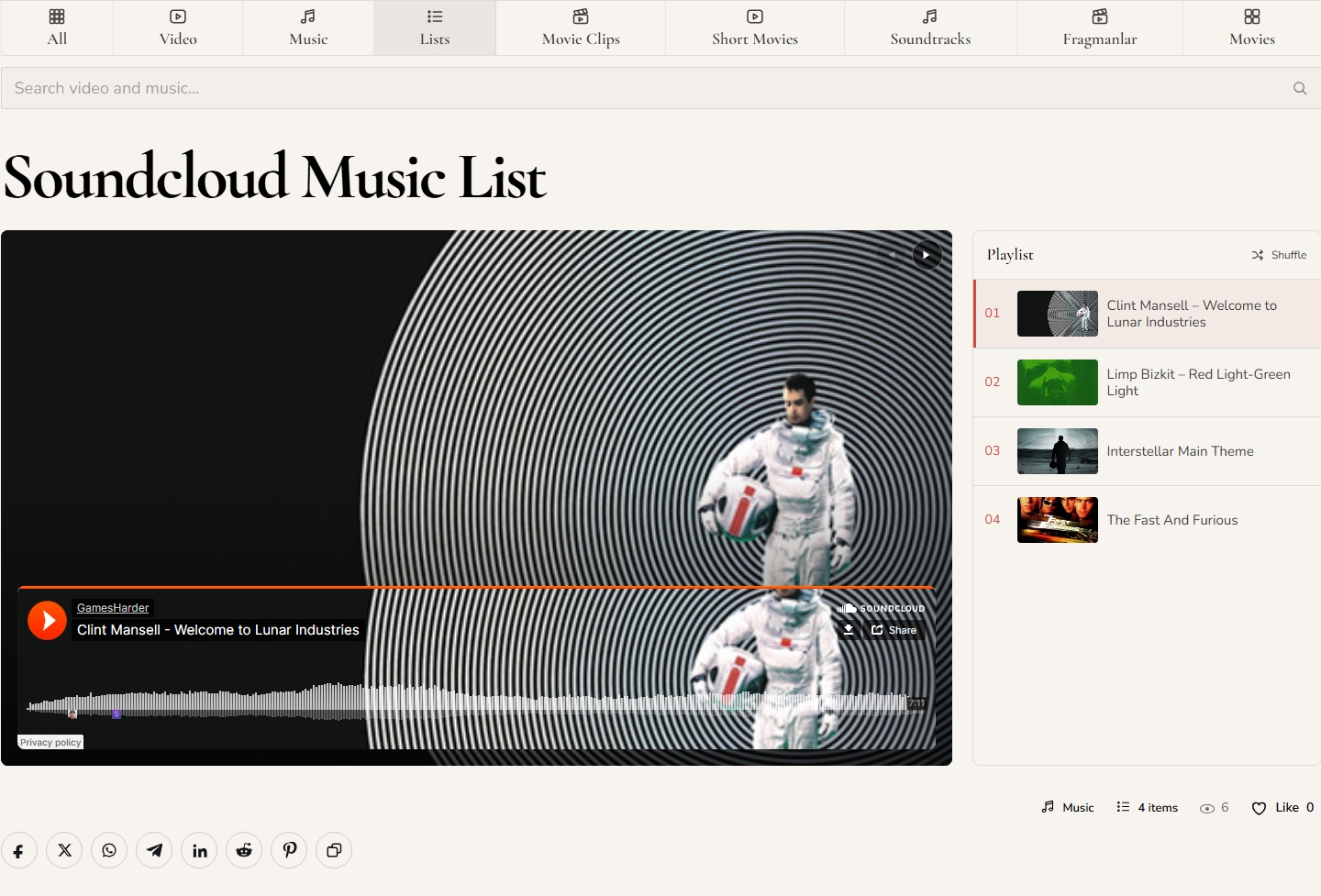
SoundCloud Music List
In a list of SoundCloud links, the selected track is presented through SoundCloud’s embedded player. Use the provider’s own controls for playback and seeking within a track.
 Enlarge ⤢
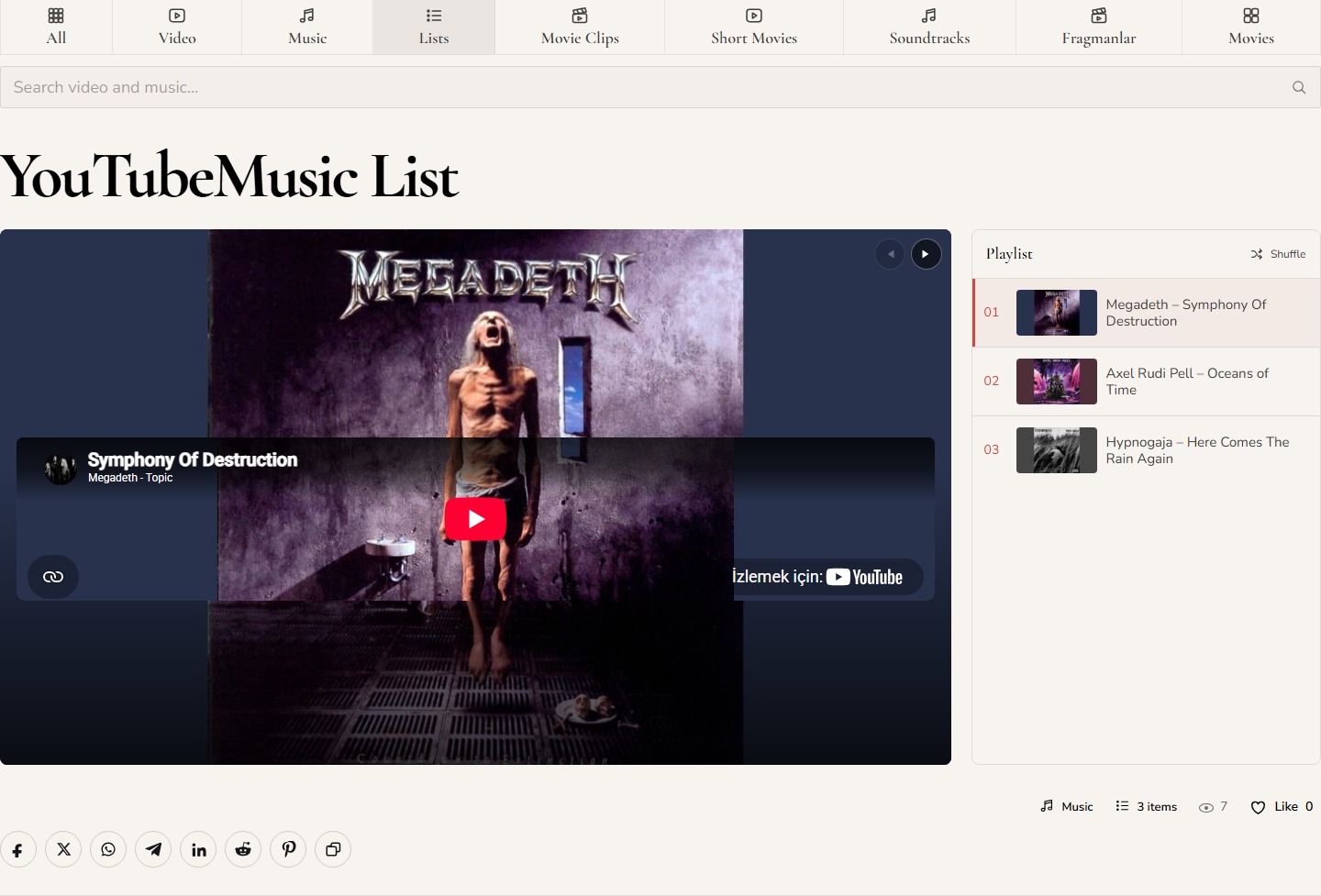
YouTube Music List
Tracks sourced from YouTube Music are presented with cover art and an embedded YouTube player. Select a track from the playlist or navigate through items using the previous and next controls.
 Enlarge ⤢
For Spotify, Apple Music or Deezer, a link to listen on the corresponding platform is displayed when a suitable source URL exists. These services may offer only short previews depending on account, subscription, region and content rights. Opening a source platform does not guarantee access to the full track.
4. Automatic next-item playback
Automatic advancement and autoplay are different features. Advancement detects when current content ends and selects the next list item. Autoplay means starting the selected media without pressing Play separately. Even when the next item has been selected, a browser may block playback.
| Media source | End detection and automatic advancement |
|---|---|
| WordPress audio/video files | Supported through the browser’s media end event. |
| Direct audio/video URL | Supported when the file plays through the browser’s built-in player. |
| YouTube / YouTube Music | Supported through the YouTube embedded player’s end event and API access. |
| Vimeo | Supported through the Vimeo player’s end notification. |
| Spotify / Apple Music / SoundCloud / Deezer | This release has no dedicated advancement integration for these providers’ end events. Select other items manually. |
In normal order, the list does not automatically return to the beginning after its last item. With Shuffle enabled, a music list may continue in a different order. A media error or a broken link does not count as normal completion; automatic skipping is not guaranteed.
5. Shuffle
The Shuffle button beside the Playlist heading in music lists selects items in random order. Click it to turn the feature on or off.
While Shuffle is on, the next item is chosen randomly from items not yet selected in the current round. When that round finishes, a new random selection round starts. Previous moves backward through playback history. Turning Shuffle off restores the normal list order. This option does not change the saved order in the dashboard.
Shuffle does not remove provider restrictions on end detection or playback. For embedded sources without automatic advancement, use the Next button.
6. Autoplay settings
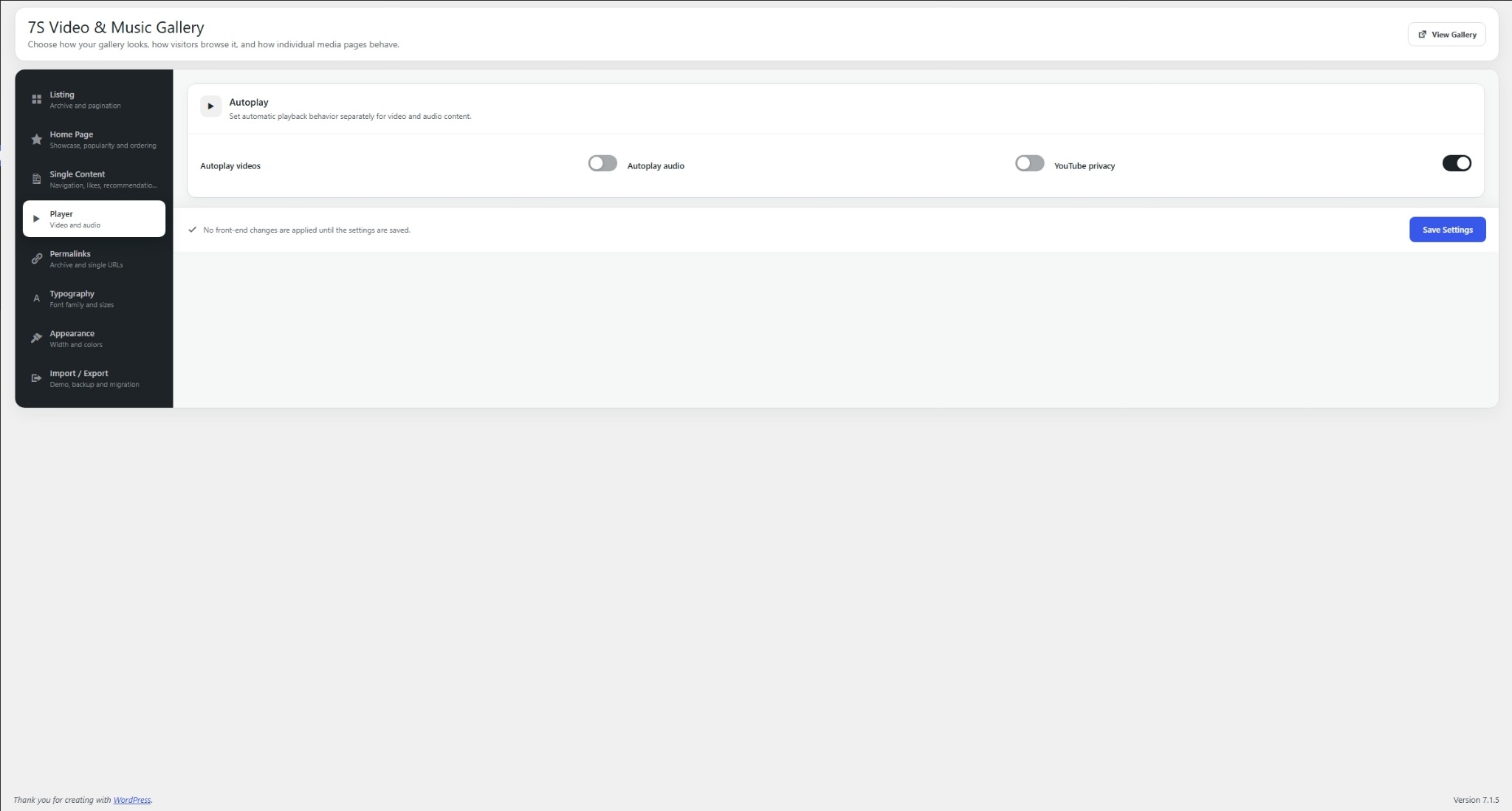
Under 7S Gallery → Settings → Player, separate autoplay options are available for video and audio. Both are disabled by default.
 Enlarge ⤢
- Autoplay videos: Requests automatic playback for supported video sources.
- Autoplay audio: Requests automatic playback for supported audio and music sources.
Enable or disable each independently and save changes. These options do not alter a provider’s playback restrictions and are not separate switches for automatic next-item playback. The list player prepares the first item as selected; user interaction, source and browser permissions determine whether playback actually starts.
Chrome, Safari and other browsers may block autoplay, particularly with sound. In this case, visitors must tap the player or press Play. See Player for details.
7. Troubleshooting
| Issue | What to check |
|---|---|
| First item does not start automatically. | Check the video or audio autoplay setting and browser media permissions. Press Play if needed. |
| The next item is not selected. | Check whether the media source supports an end notification. External music services may require manual selection. |
| The next item is selected but does not play. | The browser may have blocked autoplay. Use Play in the new player. |
| Only a short part of the track plays. | Check the external service’s preview, account or regional restrictions. |
| Seeking does not work or duration is missing. | The source may not report media duration. Use the external player’s own controls. |
| List order is unexpected. | Check the saved order in the dashboard and the Shuffle setting. |
Related guides: Creating Lists · Adding Items to Lists · Supported Media Sources.