Creating Lists
With 7S Video & Music Gallery, you can create video and music lists from existing gallery content, files in the WordPress Media Library or external media links. You do not have to add content to the main gallery beforehand.
Create a new list
Open 7S Gallery → Lists → Add New in the WordPress dashboard. Give the list a title and an optional description. In the List Contents box below the editor, choose one of the following three methods. You can also combine methods in the same list.
1. Gallery Content
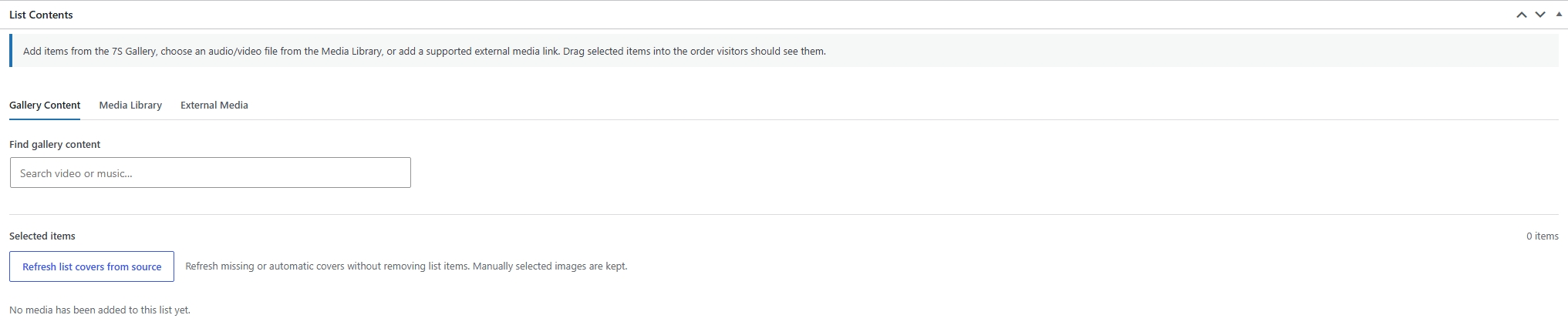
This method creates a list from videos or music already in the main gallery archive. There is no need to upload the media again or re-enter their links.
 Enlarge ⤢
- Open Gallery Content.
- Enter the video or music title in Find gallery content.
- Add the media you want from the search results.
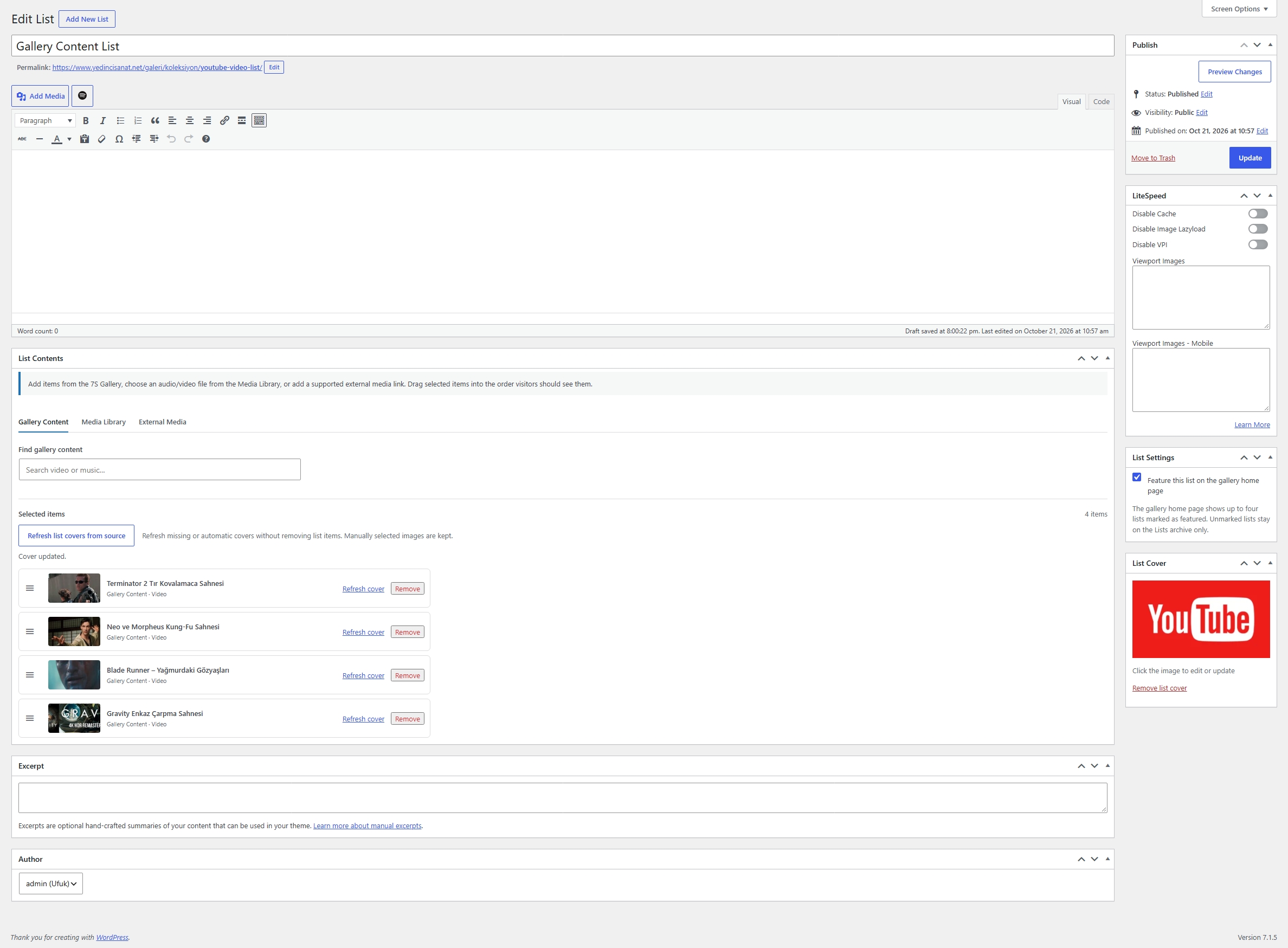
- The added items appear under Selected items. Repeat for the other items.
 Enlarge ⤢
This example uses four videos previously added to the main gallery. The process does not create copies of existing content.
2. Media Library
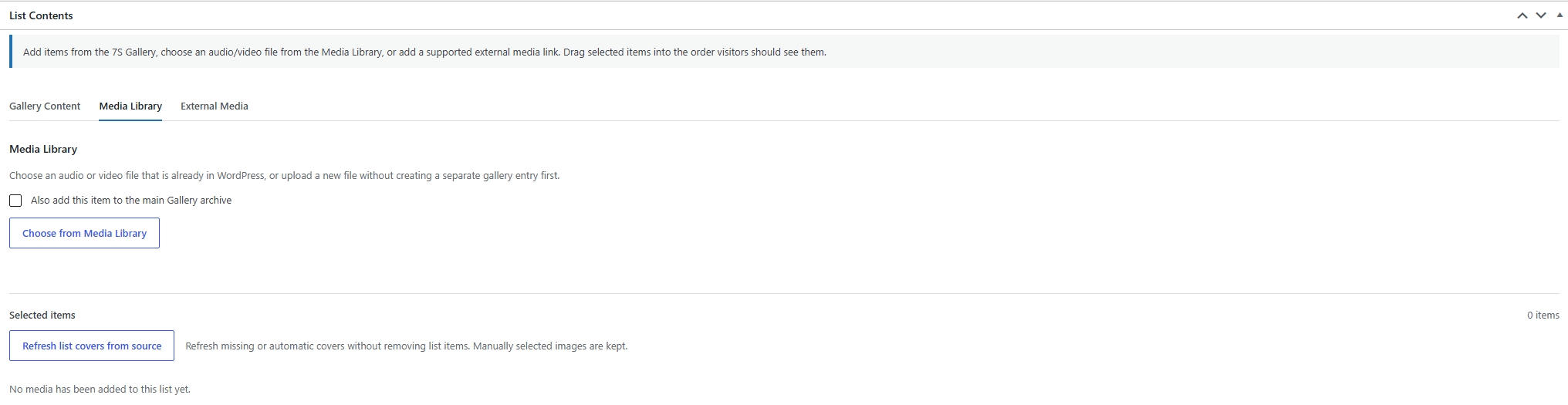
Create lists directly from audio and video files previously uploaded to WordPress or newly uploaded. For example, use this method to create a music list from your own MP3 files.
 Enlarge ⤢
- Open Media Library.
- If the file should also appear in the main gallery archive, select Also add this item to the main Gallery archive.
- Click Choose from Media Library.
- In the WordPress dialog, select an existing audio/video file or upload a new one. Confirm your selection.
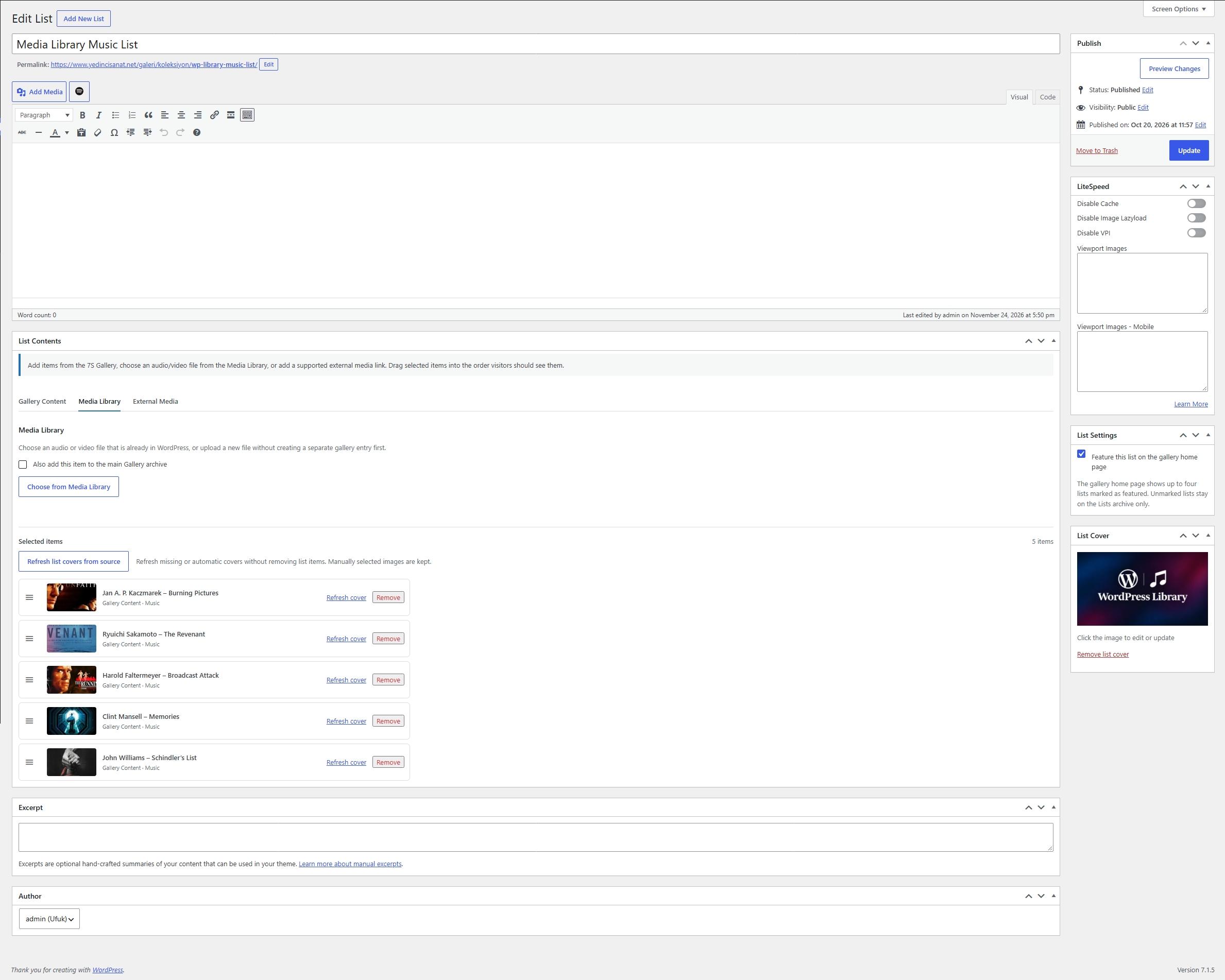
- When the item appears in Selected items, repeat the process for other files.
 Enlarge ⤢
There is no need to add each file to the main gallery first. Leave the main gallery archive checkbox unchecked if newly added files should appear only in the list.
3. External Media
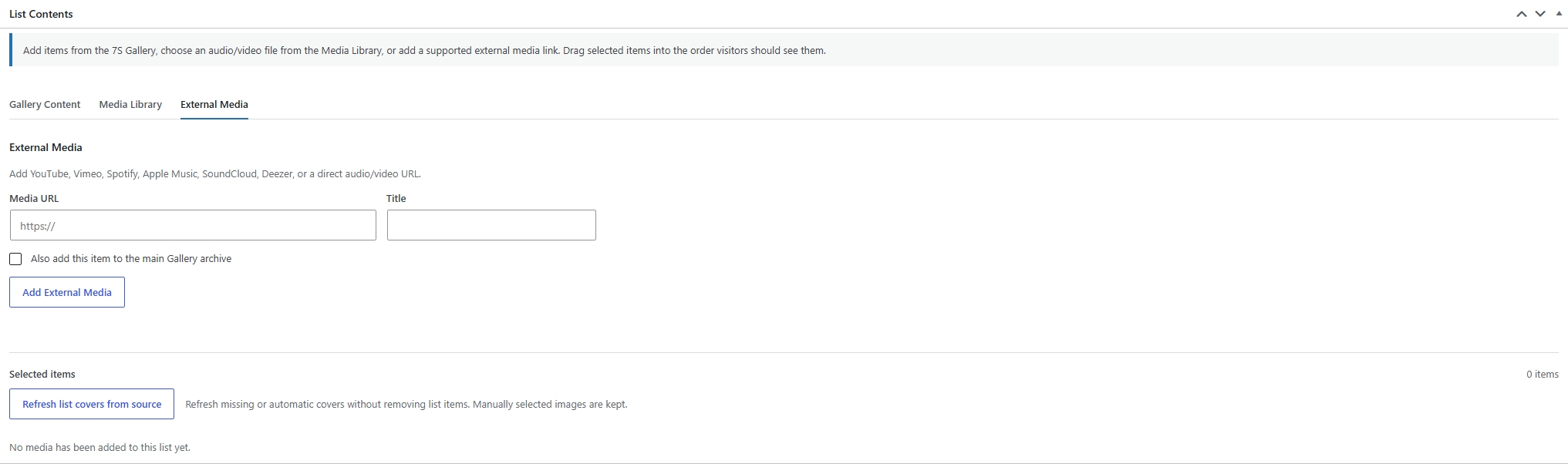
Add content from YouTube, Vimeo, Spotify, Apple Music, SoundCloud and Deezer, or supported direct audio/video URLs, that is not yet in your gallery.
 Enlarge ⤢
- Open External Media.
- Paste the content’s sharing URL into Media URL.
- Enter the name that should appear in the list in Title.
- Select the relevant checkbox if the media should also appear in the main gallery archive.
- Click Add External Media. The item is added to Selected items.
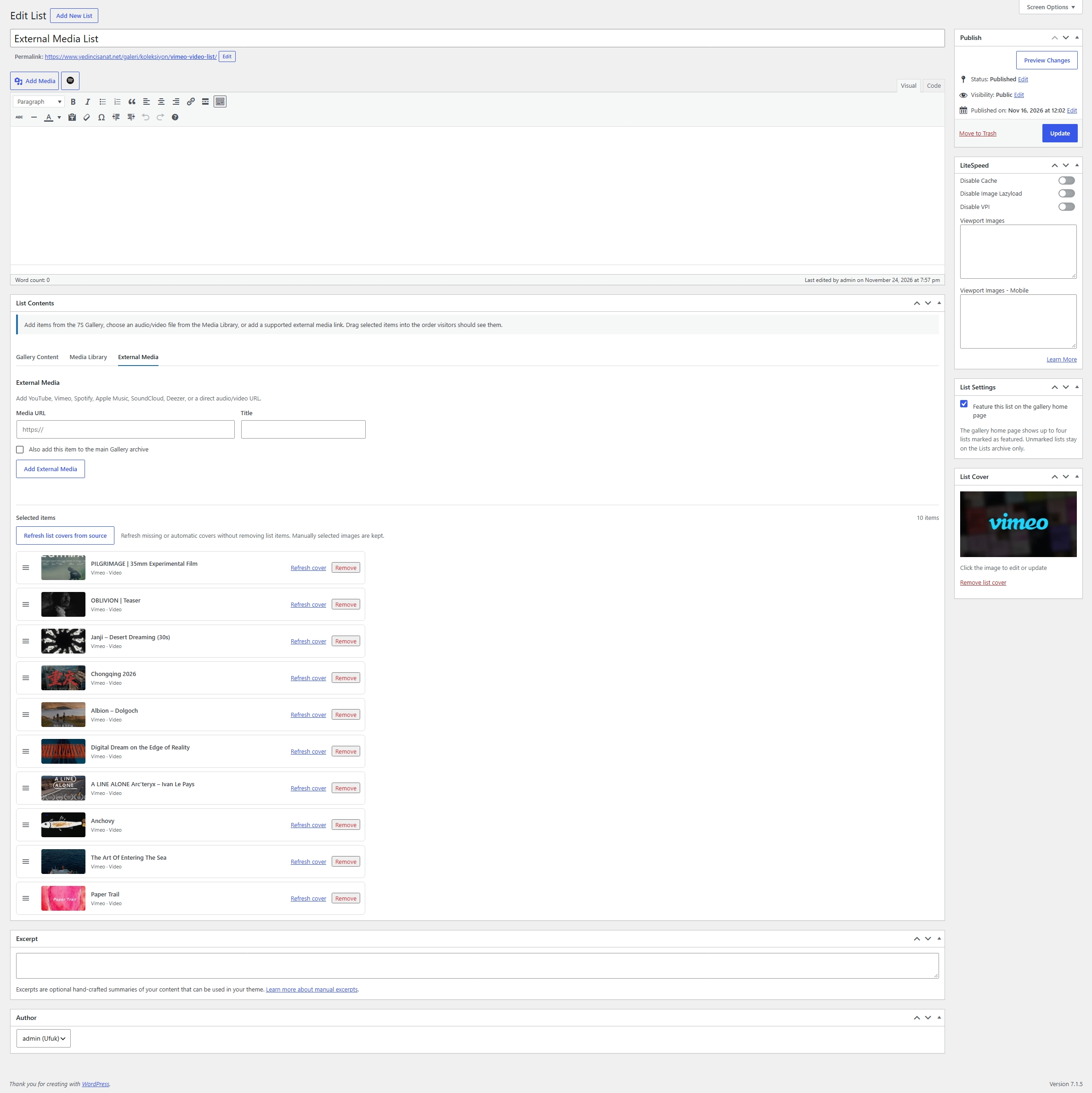
- Repeat with the URLs and titles of other items.
 Enlarge ⤢
With this method, each media URL is added individually. See Supported Media Sources for the supported URL types.
Should items also appear in the main gallery?
The Also add this item to the main Gallery archive option in Media Library and External Media determines the visibility of newly created media items. When unchecked, a new item is used only in the list. When checked, it is added both to the list and to the main gallery archive as an independent item. If an item already published in the main gallery is reused, its existing visibility is preserved.
Organize selected items
Items added using all three methods appear in the shared Selected items section. The counter in the upper right shows how many items the list contains. Use the drag handle on the left of each item to arrange playback order. Click Remove to remove an unwanted item from the list.
Use Refresh cover to retrieve a new cover for one item from its source. Refresh list covers from source updates missing or automatically generated covers in bulk; manually selected images are preserved and no list items are removed.
List Settings
Select Feature this list on the gallery home page in the right column to include the list among the featured lists on the homepage. The gallery homepage displays up to four featured lists. Unselected lists remain available in the Lists archive.
List Cover
Choose an image specifically for the list in the List Cover box on the right. Click the existing image to change it or use Remove list cover. The list cover is independent of the covers of its individual media items.
Publish the list
Review the title, item order, list cover and featured setting, then click Publish. If editing an existing list, click Update. Open the list’s link and check your content.